Dynamic QR payment
This flow is also documented in In-person payments → Customer-facing screen, which covers all point-of-sale scenarios including vending machines, kiosks, and retail checkouts.
Customer selects a product at the point of sale, a dynamic QR code appears on the screen, and they scan it to pay in the Vipps MobilePay app.
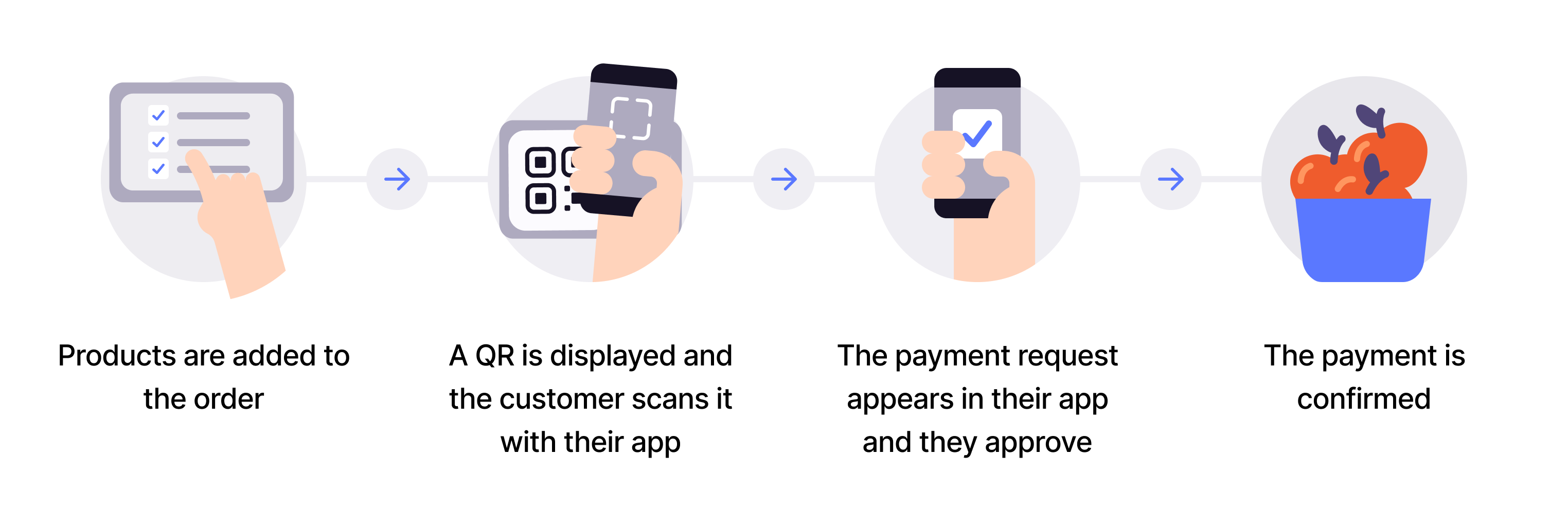
Flow diagram: 4-step dynamic QR payment process. (1) Products are added to the order. (2) A QR code is displayed and the customer scans it with their app. (3) The payment request appears in the app and the customer approves it. (4) The payment is confirmed.
- Customer selects product - Customer makes selection at the POS or vending machine.
- Generate dynamic QR - Create a one-time payment QR code and payment request with
userFlow: "QR". - Display QR code - Show the QR on the customer-facing screen (valid for 10 minutes).
- Customer scans and pays - Customer scans the QR and authorizes payment in their app.
- Capture payment - Confirm the transaction is complete.
This is the preferred flow when you have a customer-facing screen at your Point of Sale. It eliminates the need for customers to enter their phone number, reducing errors and speeding up payments.
Per regulations, specify "customerInteraction": "CUSTOMER_PRESENT".
View sequence diagram
Dynamic QR directing to the app
- Merchant generates a dynamic QR code and payment request with order details via the ePayment API.
- Merchant displays the one-time QR code to the customer.
- Customer scans the QR code and selects to pay.
- Webhooks API sends the merchant a webhook with the payment authorization status.
- Merchant captures the payment via the ePayment API.
- ePayment API returns the status of the capture.
- Merchant verifies that the POS status matches the capture.
Technical details
- How the QR API works with one-time payment - Visual walkthrough of the flow
- QR payments with ePayment - How to create dynamic QR codes