Capture
Capture is the process of moving funds from the customer's account to the merchant's account.
Depending on your bank, this can take a few days. See Settlements for payout timing and records.
The default type of capture is reserve capture, where the payment goes into the reserved state once authorized.
Direct capture is a special type of capture, available only in the Recurring API and eCom API. With direct capture, the payment moves directly to the paid state and is captured immediately.
This page focuses mainly on reserve capture, since it's the default flow.
Reserve capture vs direct capture
Only the eCom API and Recurring API support direct capture.
- Reserve capture is the default. When you initiate a payment, it stays reserved until you capture it, whether that happens a few seconds later or several days later.
- When direct capture is activated, all payment reservations are captured
instantly. This is intended for situations where the product or service is
provided to the customer immediately, with no chance that it turns out to be
unavailable or sold out, for example digital services.
- For the eCom API, direct capture requires additional compliance checks of the merchant.
- For the Recurring API, direct capture is enabled by default.
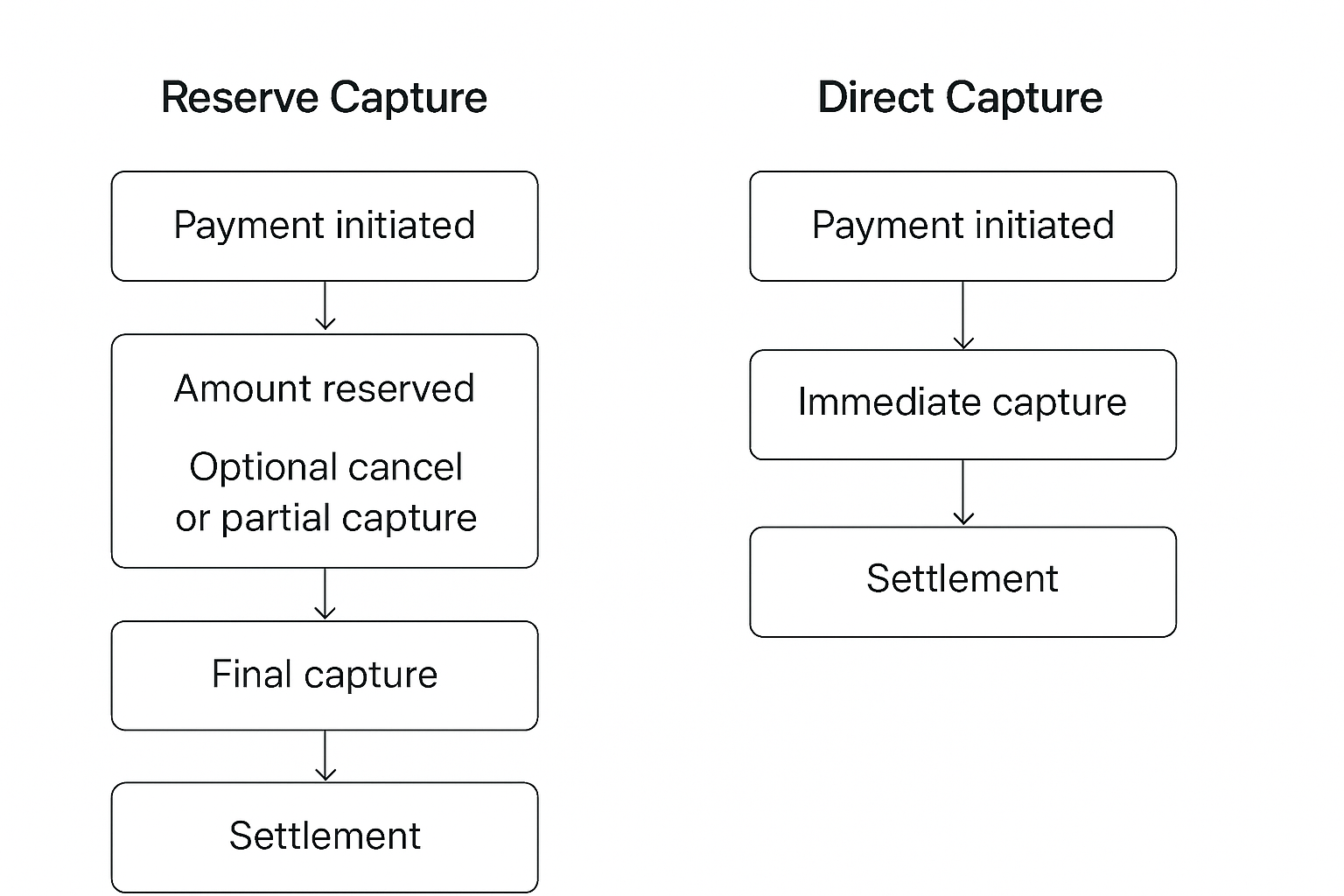
Diagram comparing two payment capture flows. Reserve Capture: Payment initiated → Amount reserved (with optional cancel or partial capture) → Final capture → Settlement. Direct Capture: (1) Payment initiated (2) Immediate capture (3) Settlement.
Some things to consider:
- If a payment has been reserved (as with reserve capture), the merchant can
make a
/cancelcall to immediately release the reservation and make the funds available in the customer's account. - If a payment has been captured (as with direct capture), the merchant has to
make a
/refundcall, and it then takes several days before the amount is available in the customer's account. - With reserve capture, you can reserve a higher amount upfront and capture only what was actually used — for example, when the final amount isn't known at the time of reservation, such as with electric car charging. You can also split the capture into multiple partial captures.
If you're not sure which to use, choose reserve capture and just do the capture right after the reserve. The user experience is exactly the same.
Reserve capture
When you use reserve capture, the customer's funds go into the reserved state instead of being captured automatically. The funds stay in the customer's account, but aren't available for them to spend.
You're obligated to wait until the products or services are ready to be delivered before you capture (see Capture regulations).
Once the order is ready, capture as soon as possible — payment reservations expire, and some financial institutions release the funds early, so they may no longer be there when you try to capture.
Do not deliver the goods until you have captured the full amount.
A reserved capture can sometimes fail, even if the payment was authorized at checkout.
- Always review the response from the capture call to confirm the full amount was captured — the HTTP status code alone isn't sufficient. Use an idempotency key in the capture call, so the same request doesn't get created more than once.
- Payment reservations can be captured only within a set number of days. The timer starts when the reservation is made, so be sure to complete all captures before it expires. See capture attempt deadlines for details.
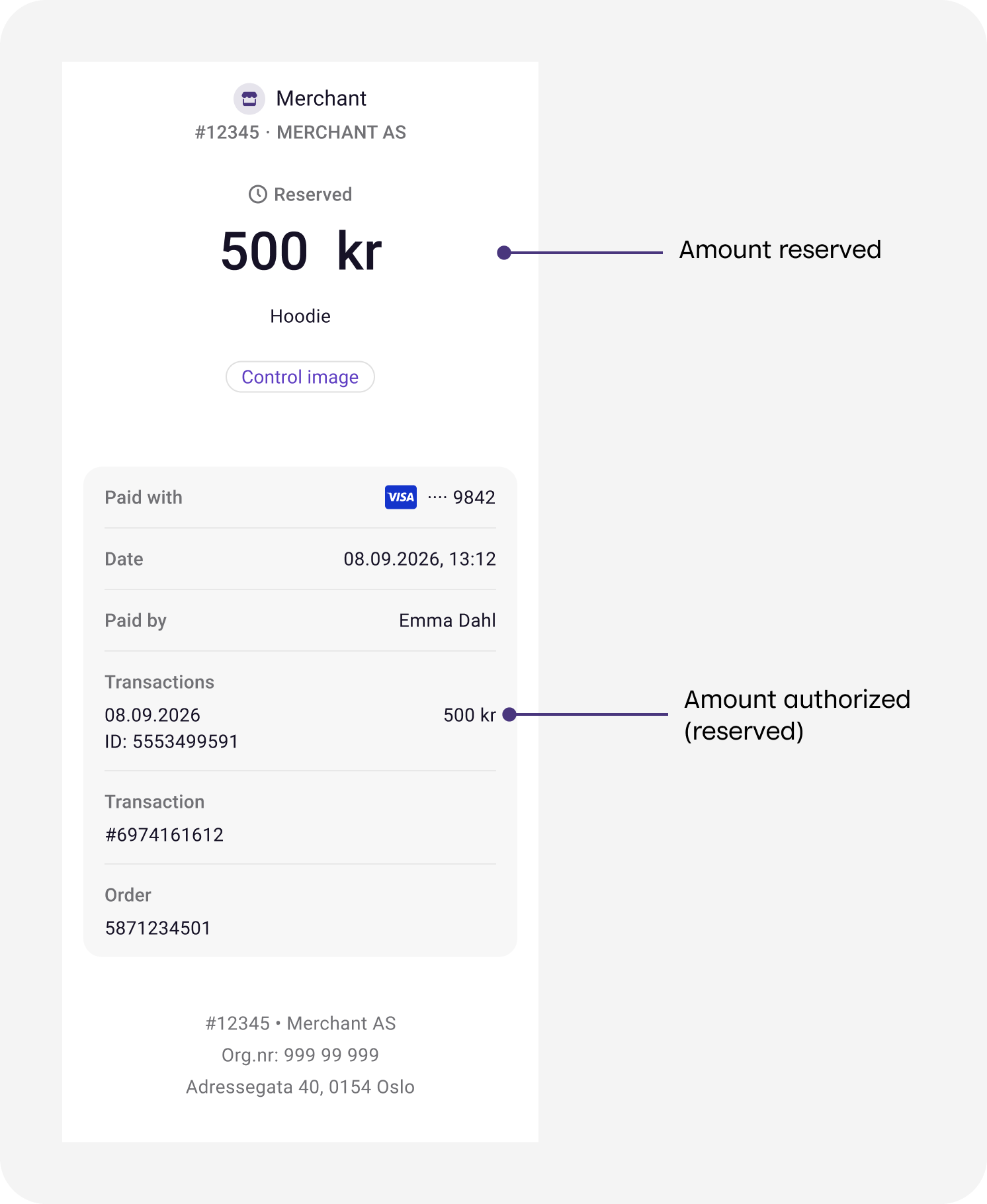
Screenshot: Vipps/MobilePay app showing a reserved payment of 500 kr for "Hoodie". Status is Reserved. Annotated labels indicate: Amount reserved, Amount authorized (reserved), and Reference (orderId).
With reserve capture, you have the option of capturing the full amount (full capture), or doing a partial capture, where you capture only part of the amount.
With partial capture, you can use multiple small captures until the reserved amount is used, or you could cancel any unused amount.
If you don't plan to capture the entire amount, cancel the remainder as soon as possible for a good user experience.
Once captured, returning funds requires a refund operation, which can take a few days. For details about bank payouts and records, see Settlements.
Partial capture
Merchants in the Danish and Finnish markets must request Partial Capture through customer service.
With partial capture, part of the original authorized amount is captured, and the remaining amount continues to be available for capture.
Partial capture can be collected many times, for as long as there is a remaining reserved amount. You should capture or cancel the remainder when the order is complete. See Cancel a partially captured order.
Be sure to capture the payment within the capture deadlines; otherwise it will be cancelled. Partial captures do not extend the reservation period.
Example: Payment with partial capture
When the final amount isn't known at the time of the payment request — for example with vending machines, charging stations, or taxis — it's common to reserve a slightly higher (but reasonable) amount.
This ensures the payment is authorized to cover the full cost of the service. Once the exact amount is determined, the merchant captures that amount and cancels the remaining reservation.
For example:
- Customer pays at EV charger via Vipps/MobilePay.
- Merchant reserves 500 NOK (final amount unknown).
- Customer approves and charging starts.
- After charging, actual cost is 250 NOK.
- Merchant captures 250 NOK and cancels the remaining 250 NOK.
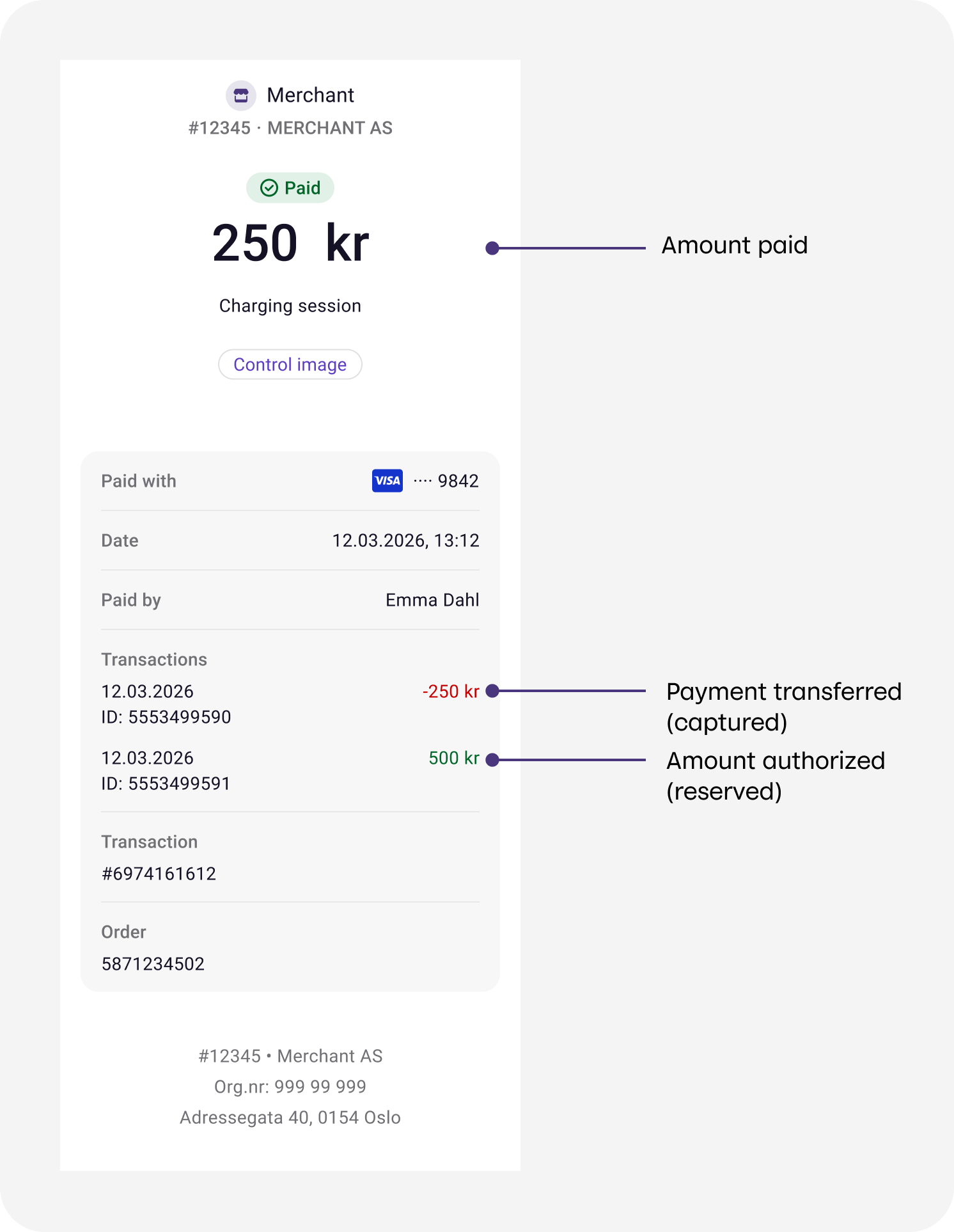
Screenshot: Vipps/MobilePay app showing a paid charging session of 250 kr. Transaction history shows a capture of −250 kr and an original reservation of 500 kr. Annotated labels indicate: Amount paid, Payment transferred (captured), and Amount authorized (reserved).
For another example, see Flows: Electric vehicle charging.
Capture regulations
By regulation, you must not capture a payment until the product or service is ready to be delivered to the customer.
We comply with applicable local laws as well as guidance from the Norwegian Data Protection Authority, Datatilsynet, and other relevant local authorities.
Capture attempt deadlines
A payment can only be captured for a limited period after it has been authorized.
The maximum period during which the APIs allow a capture attempt:
| Market | Capture attempt deadline |
|---|---|
| Norwegian market | 180 days |
| Danish and Finnish markets | 14 days, unless late capture is activated |
 Norwegian market
 Danish and Finnish markets
After these deadlines, the payment is automatically cancelled and can no longer be captured.
Attempting to capture after the deadline returns HTTP 400 Bad Request with relevant error details.
These deadlines are outer limits, not guarantees — the customer's bank, card issuer, Klarna, or other payment provider can release the reservation earlier than the API capture limit. Once the reservation has been released, a capture may fail even though the API still allows you to attempt it.
| Payment method | Usually released within |
|---|---|
| Visa | 5-7 days (5 days for Visa Electron); banks may release after 4-7 days |
| Mastercard | 30 days; banks may release earlier |
| BankAxept | 7 days, hard limit (Norway) |
Being allowed to attempt a capture is not the same as the capture being guaranteed to succeed. In the ePayment API, you can check exactly how long a successful capture is guaranteed for a given payment by reading the
captureGuaranteedUntil field.
Always confirm that your capture request succeeded and that the entire amount was captured before you deliver the product. A capture can fail due to insufficient funds even if the payment was authorized at checkout.
If a capture fails, do not deliver the products until the issue is resolved.
If a capture still fails more than 30 days after the payment was reserved, don't keep retrying. Contact the customer to arrange another way to pay.
Late capture in the Danish and Finnish markets
This feature must be approved for your sales unit on a case-by-case basis, and requires a legitimate business need. The typical scenario is online retail, where goods are delivered later (for example, when the product isn't in stock), and capture must also happen later as a result.
Contact your KAM or customer service.
Captures between 15 and 180 days after reservation are not guaranteed to succeed. The card may have expired or have insufficient funds by the time of capture. See Capture attempt deadlines.
Troubleshooting
Why does capture fail?
The most common reasons are:
-
Reservation expired — insufficient funds: Card networks only guarantee the reservation for a limited time — see the reservation limits per payment method in capture attempt deadlines. Once expired, the bank releases the held funds and a capture attempt becomes a new charge that can fail if the customer has since spent those funds. Capture immediately before shipping, on the same day. Verify the response body confirms the full amount was captured before handing the goods to the carrier.
-
Capture amount is higher than the reserved amount: The customer approved a specific amount in the app, but you are attempting to charge more.
-
The payment is not in a reserved state: The customer has not yet approved the payment, or the payment was already captured or cancelled.
-
The payment was automatically cancelled due to the capture deadline being exceeded. See capture attempt deadlines.
All failed capture attempts get an error response from our API. The response contains the details of why the capture failed.
If the reserved amount is too low for shipping costs to be included, the capture will fail. The reserved amount must be at least as high as the amount that is captured.
Example: If the value of the shopping cart is 1000 NOK, and the reserved amount is 1200 NOK, the shipping cost can be a maximum of 200 NOK to be within the reserved amount of 1200 NOK. If the shipping cost is 300 NOK, a capture of 1000 + 300 NOK = 1300 NOK will fail.
It's not possible to capture more than the reserved amount, as that would make this sequence possible:
- The merchant initiates a payment of 1000 NOK.
- The user confirms the 1000 NOK payment in the app.
- The merchant captures 50 000 NOK from the user.
Similarly, it's not possible to capture an amount that isn't reserved, as that would make it possible to charge a user's card without requiring the user to confirm the payment first.
Customer reports being charged twice
Some banks display both the reservation and the capture to customers, which can lead to confusion about being charged twice. This is actually the same payment shown at different stages, not duplicate charges.
See Investigating double charge reports for detailed steps on how to investigate and explain this to customers.
Common questions
For how long is a payment reserved?
A payment is reserved until it is either captured, cancelled, or expired. For the number of days, see payment capture deadlines.
When should I use "direct capture"?
Only the eCom API and Recurring API support direct capture.
If you aren't sure, use reserve capture and capture immediately after reserving. This has some benefits — see Reserve capture vs direct capture.
How can I check if I have "reserve capture" or "direct capture"?
All merchants can log in to the business portal and check the capture type for all their sales units in the Developer section.
You can also find information on how to change capture type there. We require BankID, FTN, or MitID login for this, as direct capture requires additional compliance checks.
If you are a partner and want to check a merchant, see the Management API.
If you are a partner and don't yet use the Management API, you can ask the merchant to create a business portal user for you. Then, you can check on behalf of the merchant.
If you are not able to log in to the
business portal,
you can make a small payment (2 NOK), check the payment with
GET:/ecomm/v2/payments/{orderId}/details,
and cancel (if it was RESERVE and reserve capture) or refund (if it was SALE and direct capture).
How do I turn direct capture on or off?
You can't turn direct capture on or off as a merchant. A sales unit can only have one capture type, and we must configure that.
We only offer direct capture to merchants that use Vipps MobilePay through a partner, and for merchants that have a Key Account Manager. Direct capture must be requested by the partner from the partner manager, or by KAM merchants from the Key Account Manager.
See:
API guides
The following APIs have capture methods: