Merchant-initiated login
Make it simple for customers to share their information or confirm their identity. With merchant-initiated login, you can trigger a login flow directly on their device using their phone number.
Merchants can customize the login flow to suit their specific needs. Here are the available options:
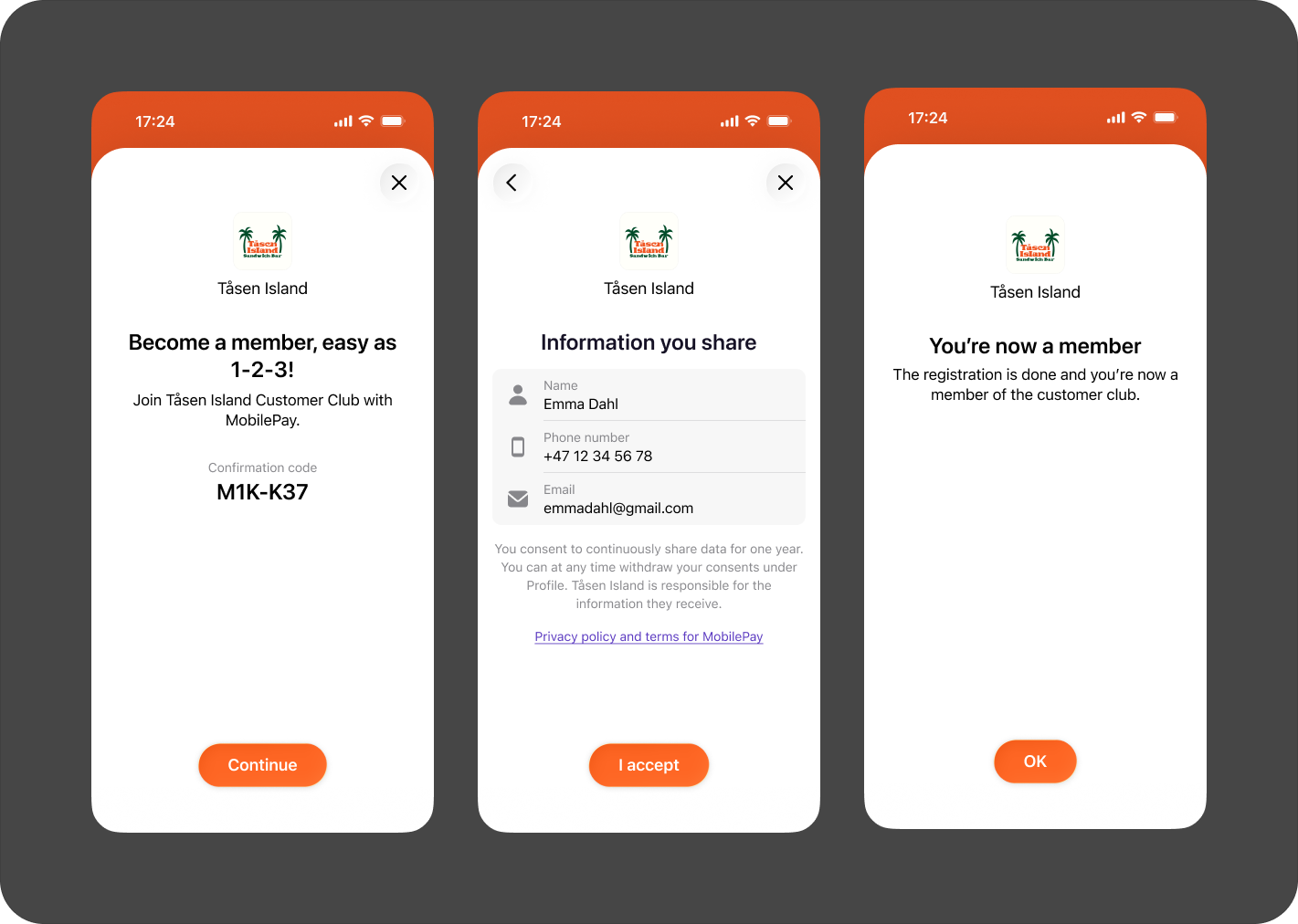
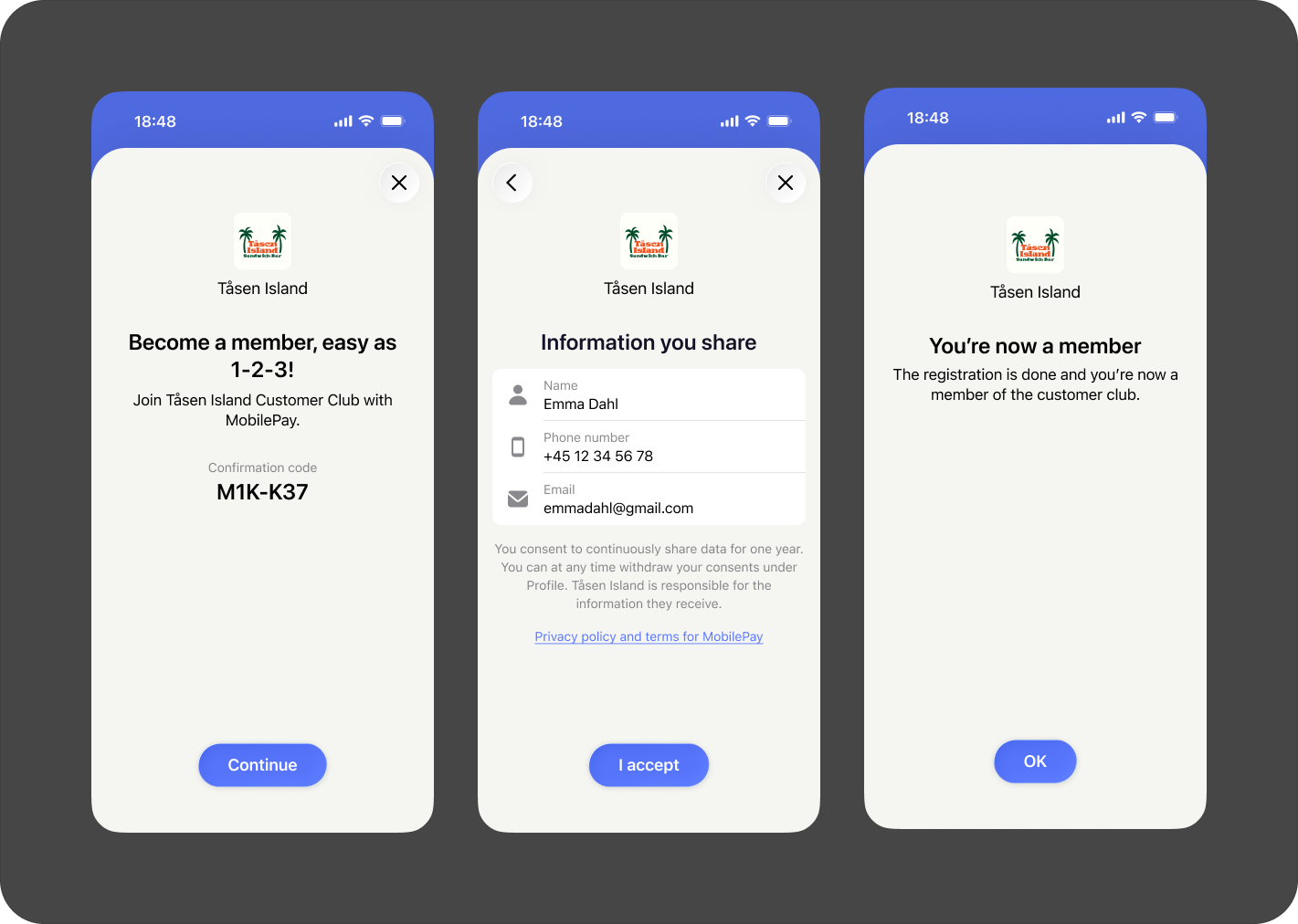
- Binding message: Add a confirmation code as a security measure to help users verify they're accepting the correct login by seeing the same code on both devices.
- Marketing consents: Collect consents needed for enrolling customers in your loyalty program or customer club.
- Redirect to website: Direct users to a specific webpage after the login is successfully completed.
- Custom messaging: Choose between different text options that will be displayed to users during the flow.
Tailor the flow to fit your use case and create a seamless experience for your customers!
Basic flow
- Vipps
- MobilePay
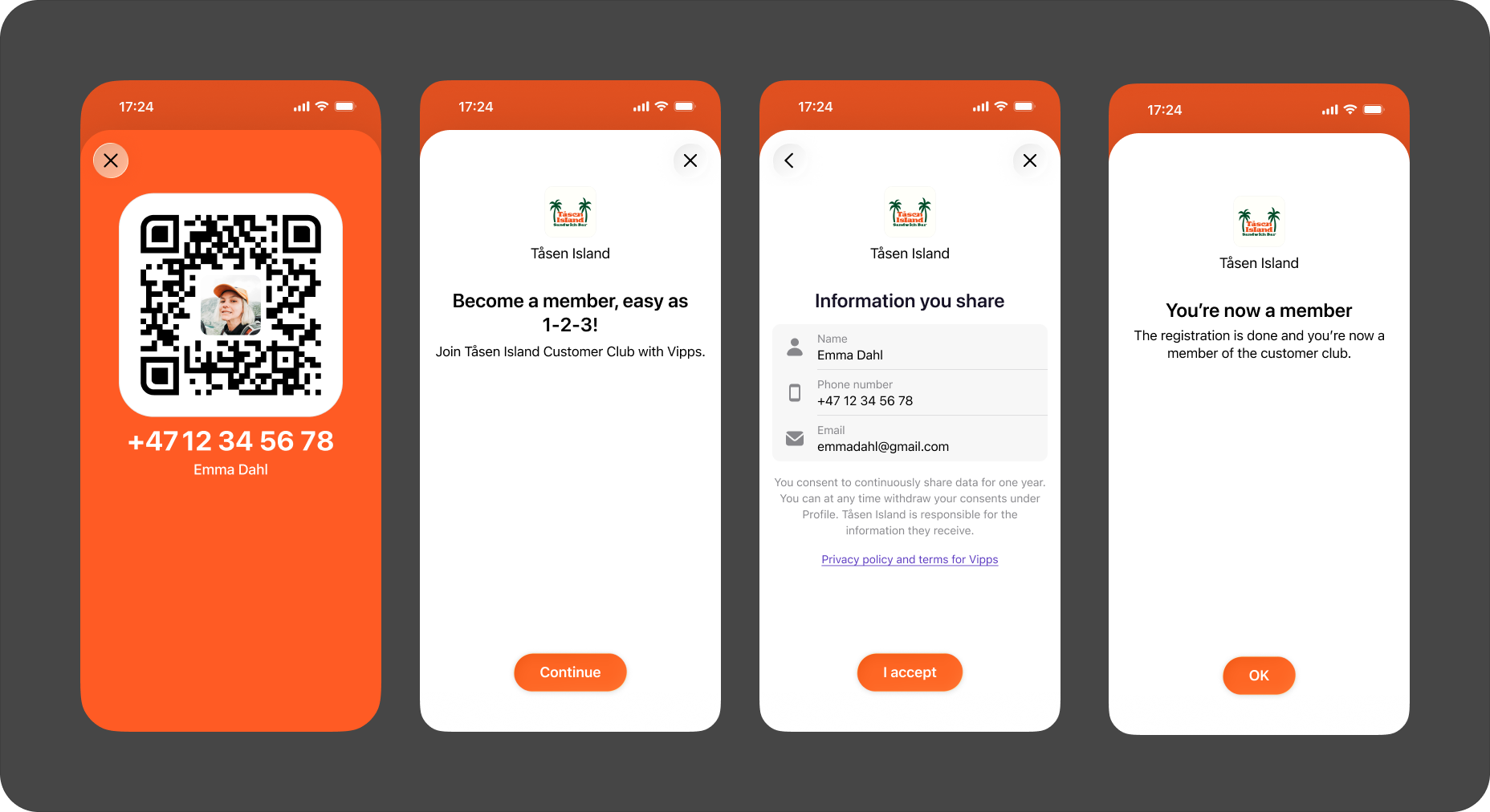
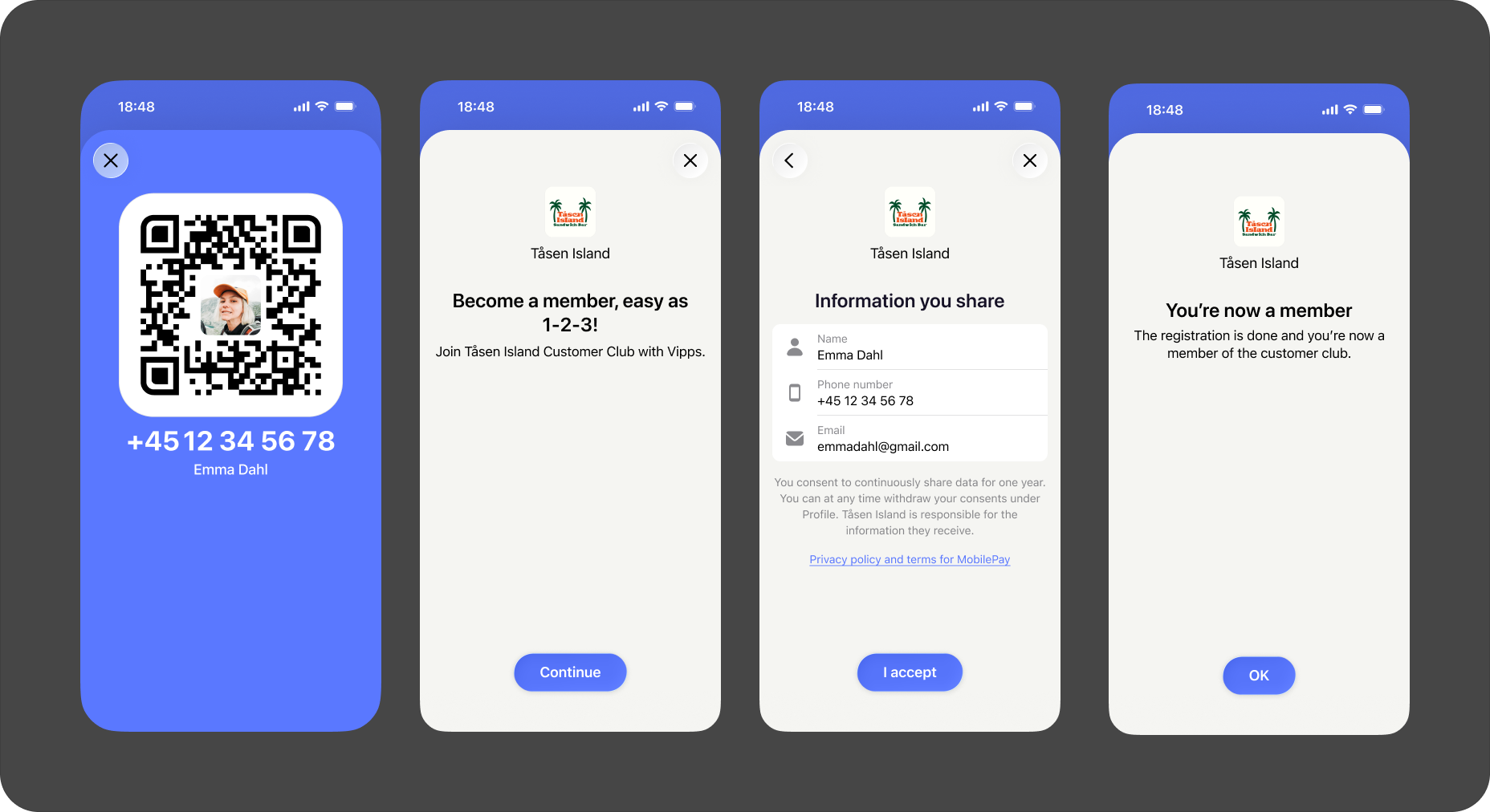
1. Merchant initiates login using phone number
The merchant initiates the login flow on the user's device using their phone number through the backchannel authentication endpoint.
A convenient way to get the user's phone number is by scanning their personal QR code.
The user receives a push notification and clicks to open their Vipps or MobilePay app.
If push notifications are turned off or missed, the user can manually open Vipps or MobilePay to automatically see the login request.
2. User views login request in the app
Once the user opens their Vipps or MobilePay app, they're prompted to confirm sharing information with the merchant. The screen displays the details requested by the merchant and identifies the requesting merchant by name.
3. User gives consent to share information
When the user selects to continue in the Vipps or MobilePay app, they give consent to share their information with the merchant (linked to the sales unit).
One-time consent: The user only needs to give consent once per merchant sales unit (identified by the Merchant Serial Number). After this initial consent, it applies across all login scenarios for that sales unit. If the user has previously consented to share information with the merchant's sales unit, this step is automatically skipped—no repeated consents needed.
You can customize the text that users see in the app through the business portal, under the Login settings for your sales unit. See Merchant-initiated login texts for examples.
4. Login process completes
The process concludes either:
- In the Vipps or MobilePay app with a confirmation screen
- Via redirect to the merchant's website
Flow variations
Complete login in the app
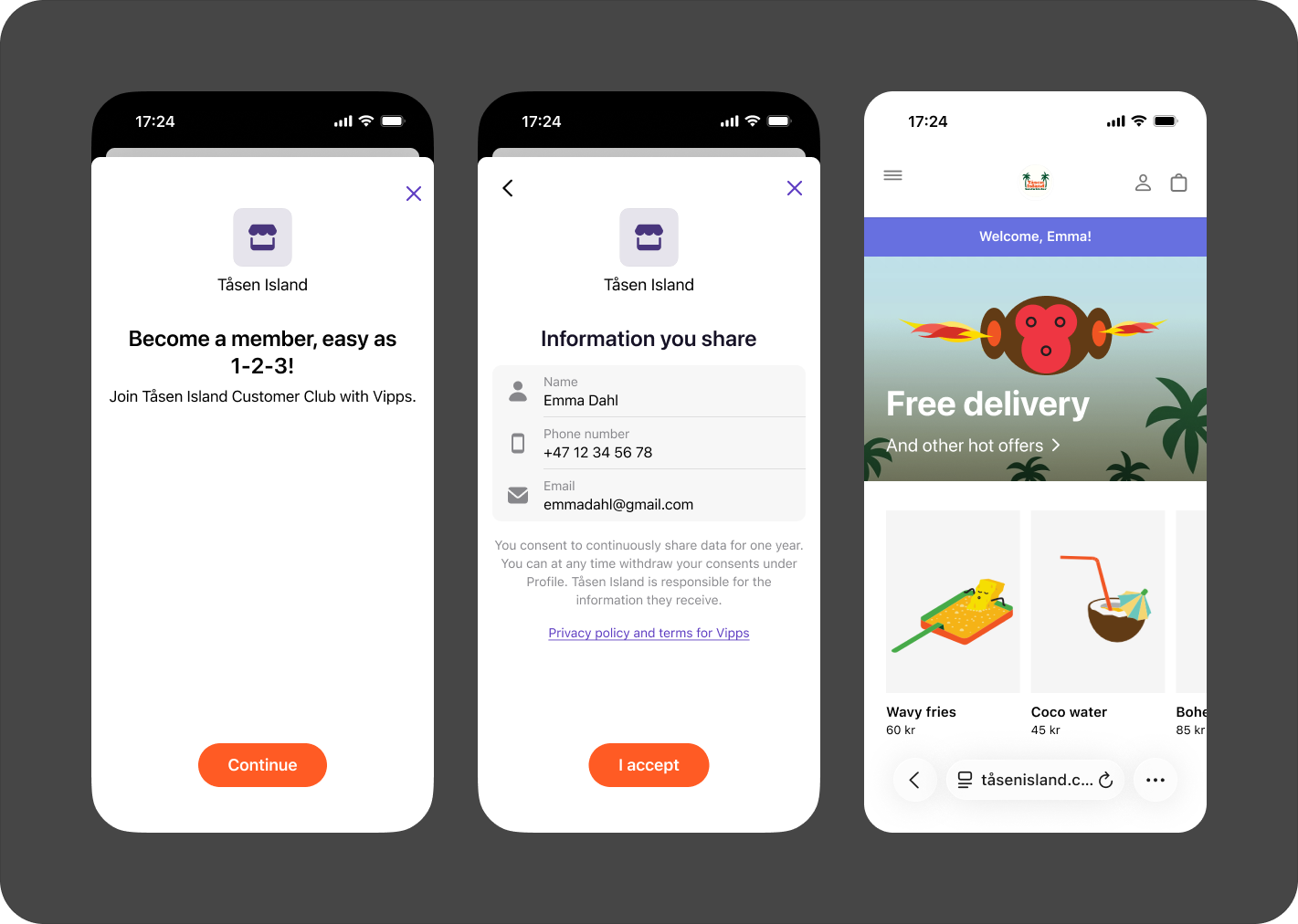
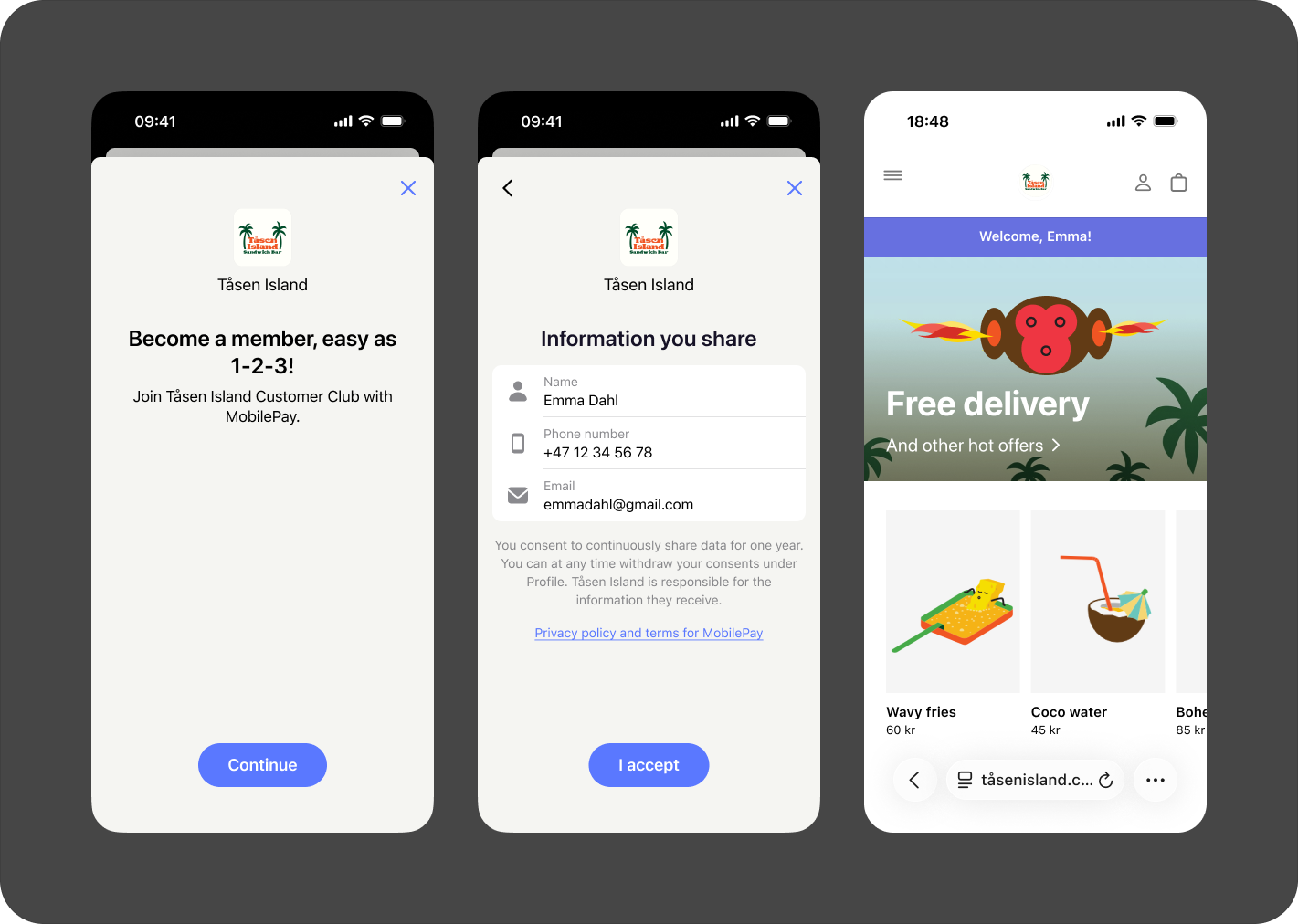
The user receives a confirmation screen in the app indicating the login is complete. For example:
- Vipps
- MobilePay
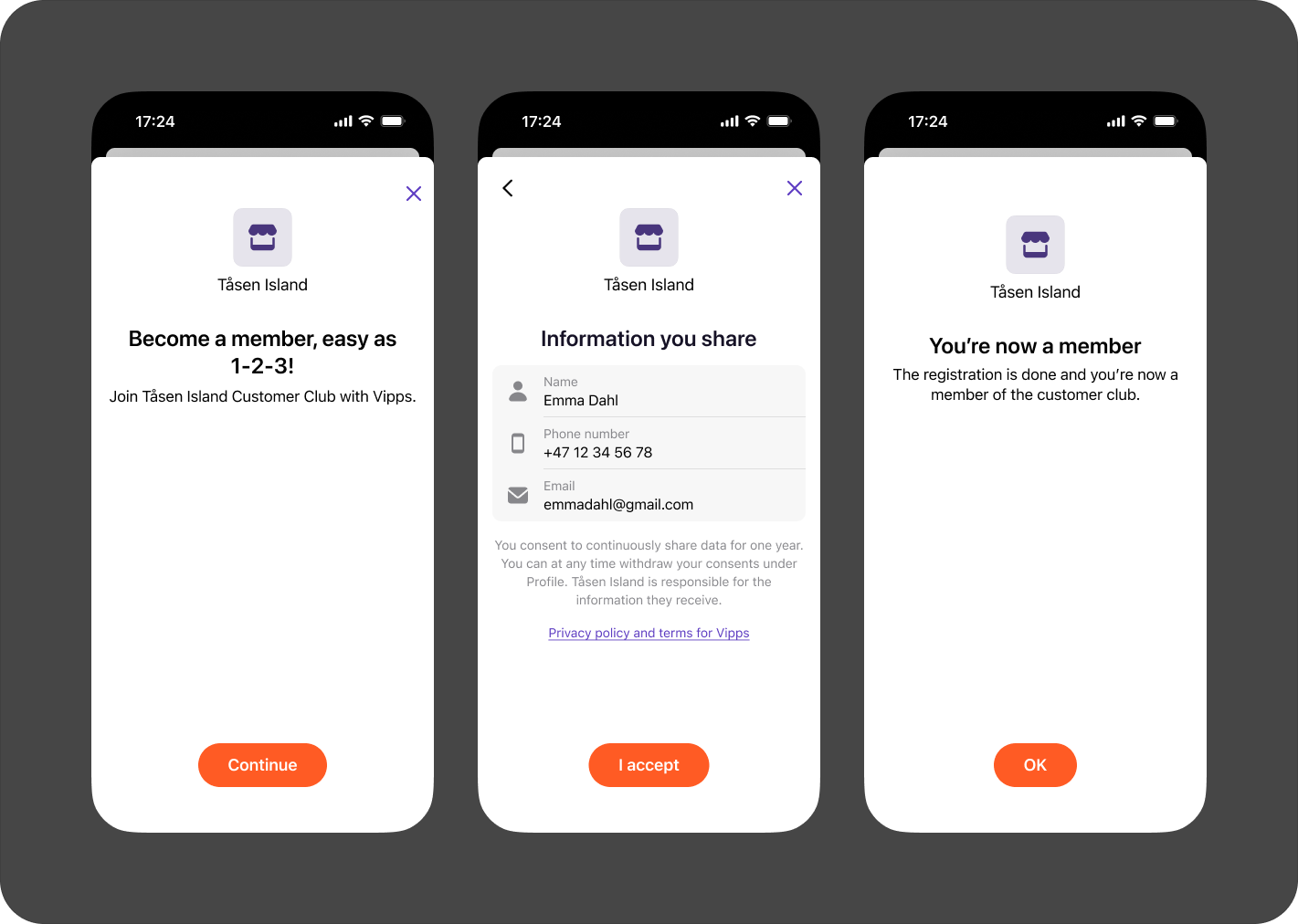
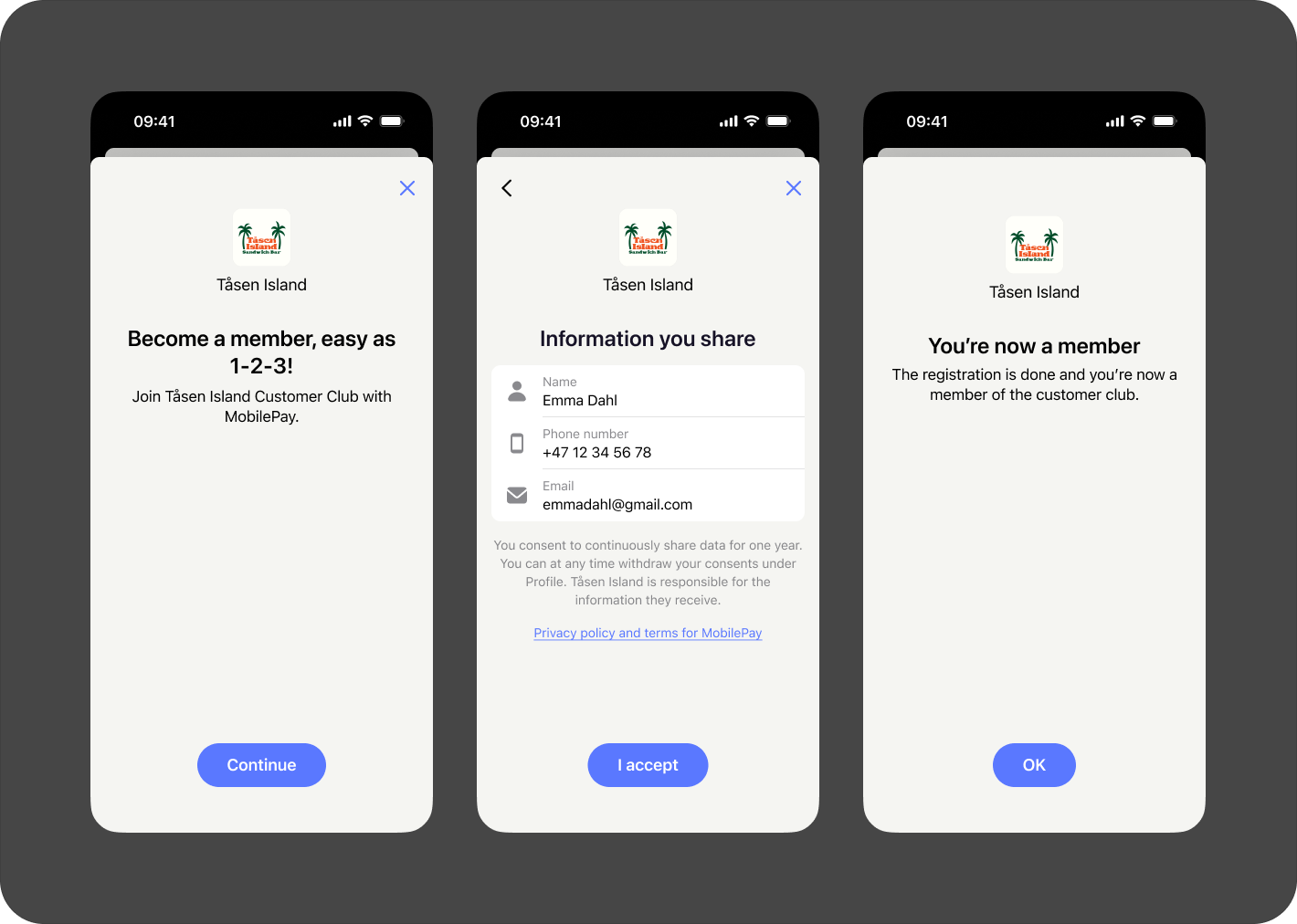
Redirect to merchant website
After the user confirms in the app, they can be redirected to the merchant's website. This allows merchants to:
- Welcome users to a customer club
- Collect additional information or preferences
- Display personalized offers or relevant details
- Continue the user journey on the website
For example:
- Vipps
- MobilePay
Add a binding message for security
Merchants can include a binding message (confirmation code) for an added layer of security. This code is displayed both in the merchant's system and in the user's app, allowing the user to verify they're confirming the correct login request.
- Vipps
- MobilePay
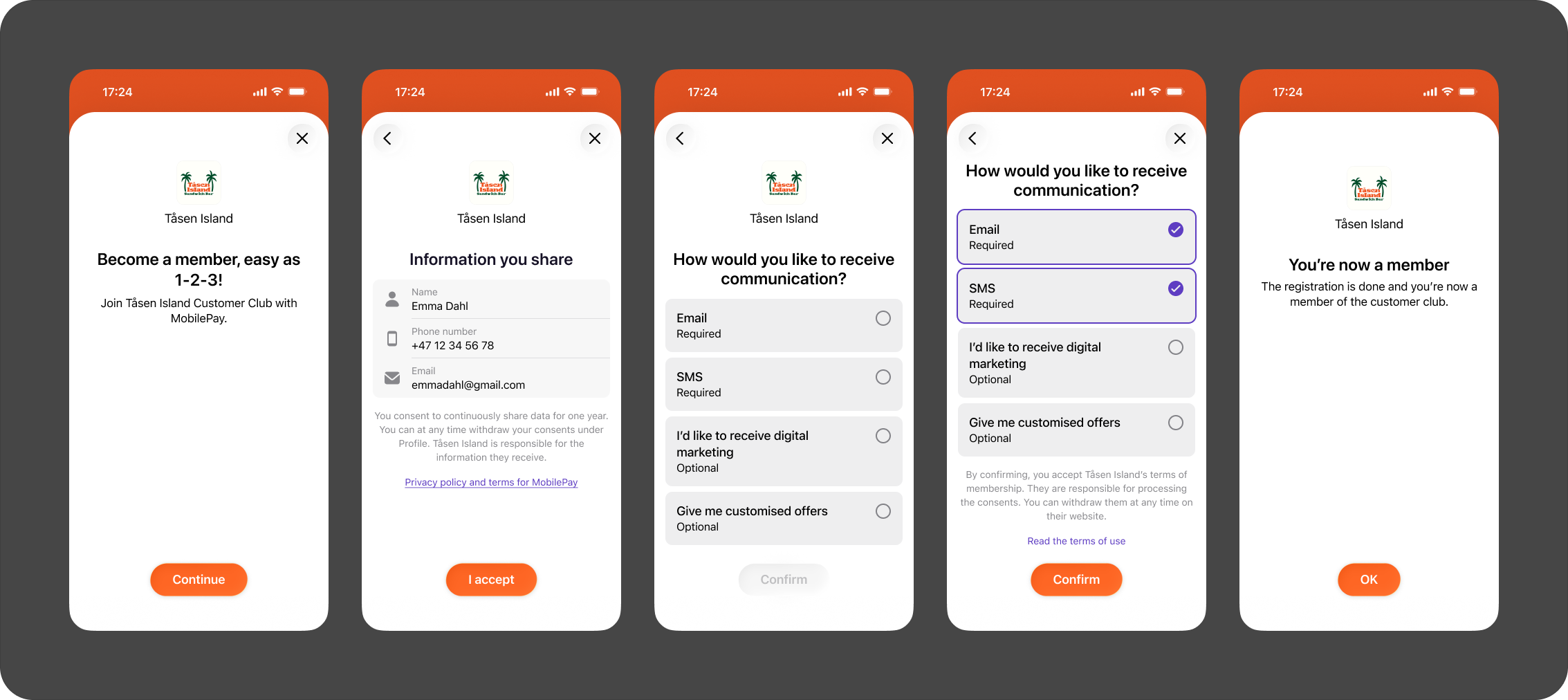
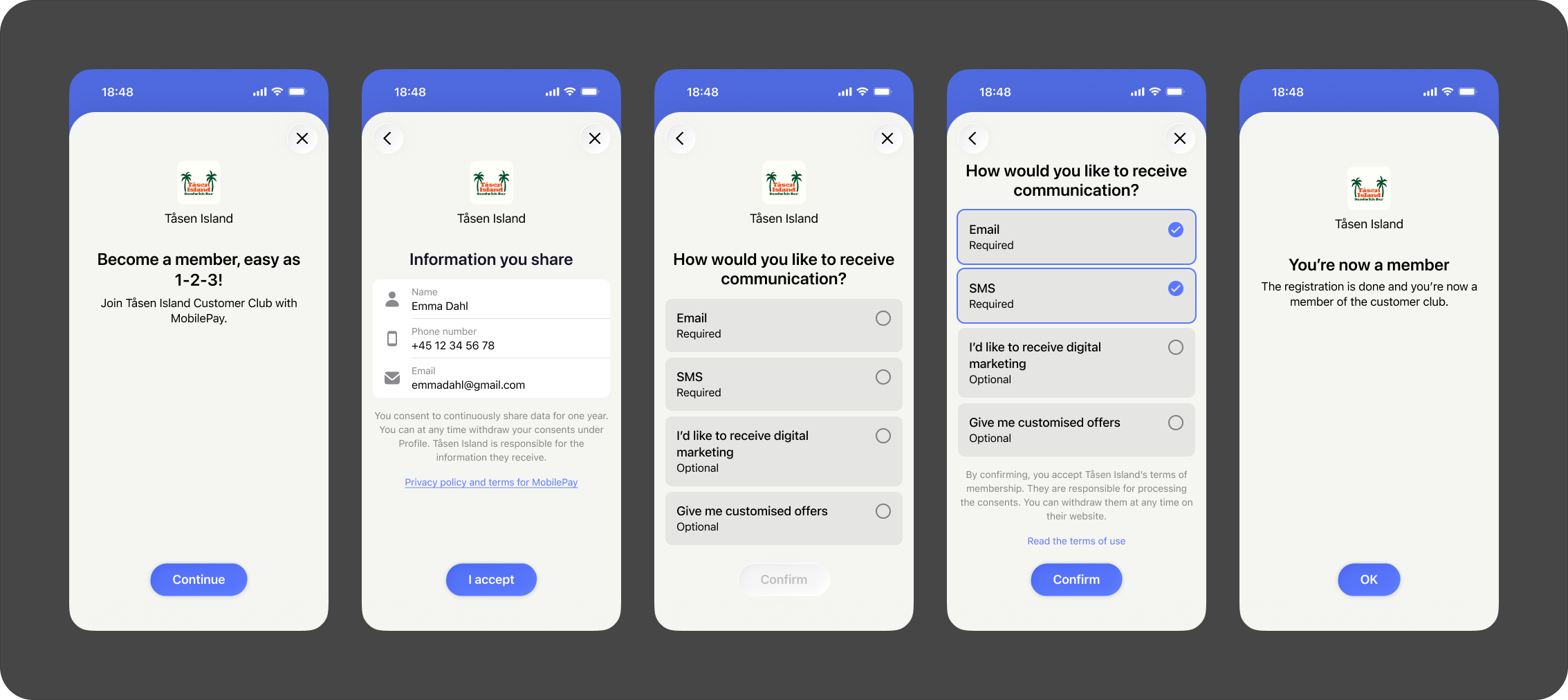
Collect marketing consents
Merchants can collect consents directly from users in their Vipps or MobilePay app. This option is particularly useful for enrolling users into a loyalty program or customer club, especially when the user is physically present at a point of sale.
Merchants can customize the consent collection experience through the business portal. For more details, see Collecting consents.
- Vipps
- MobilePay
See also
For technical implementation details, see: