Login from mobile
Let your customers log in to your website or app from their phone.
- Vipps
- MobilePay
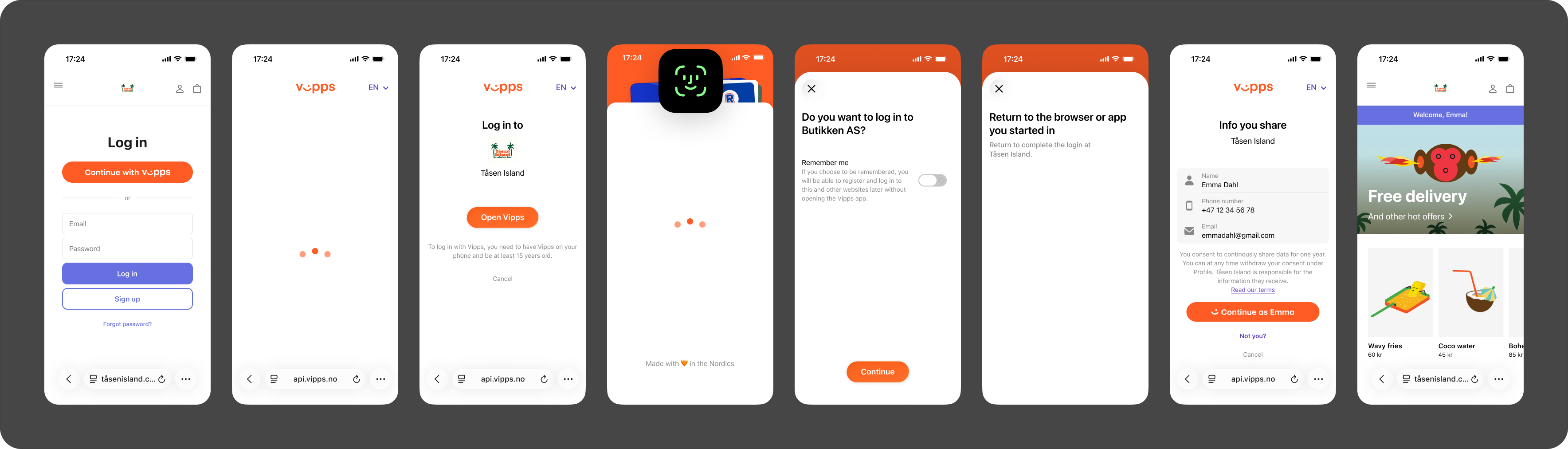
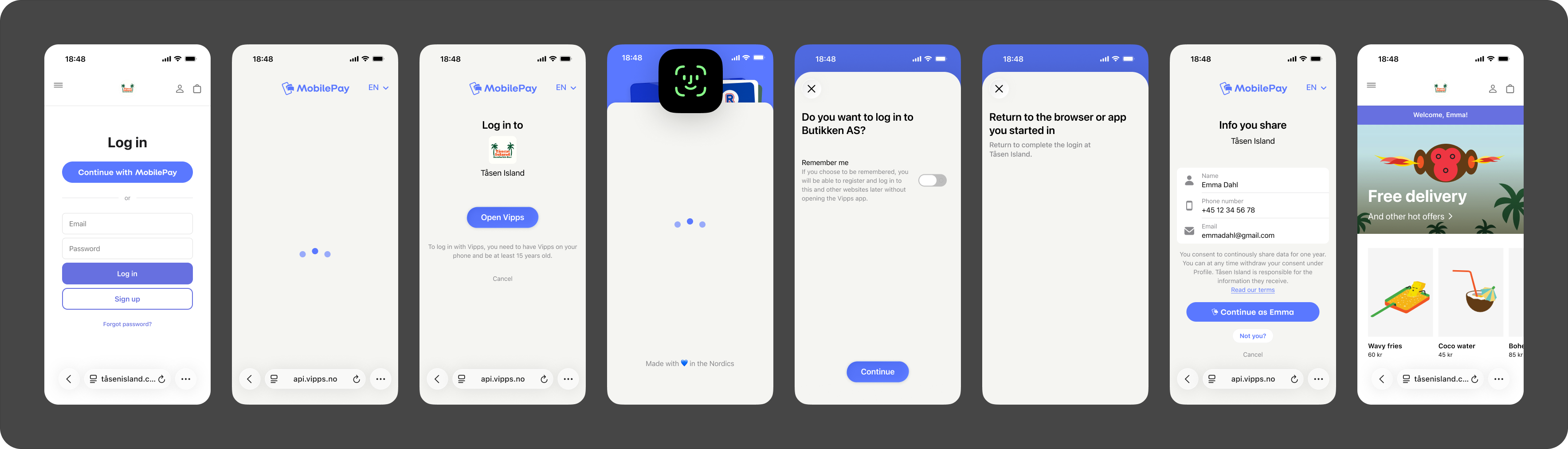
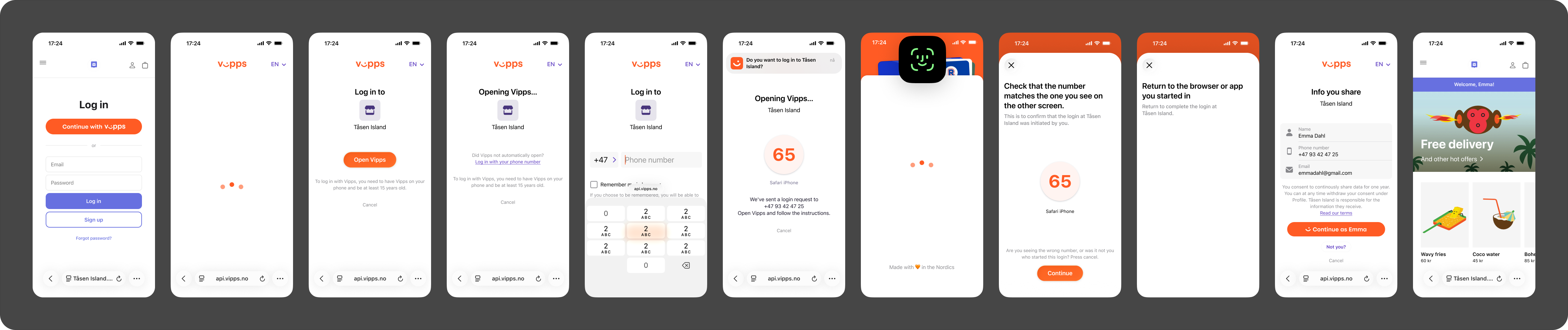
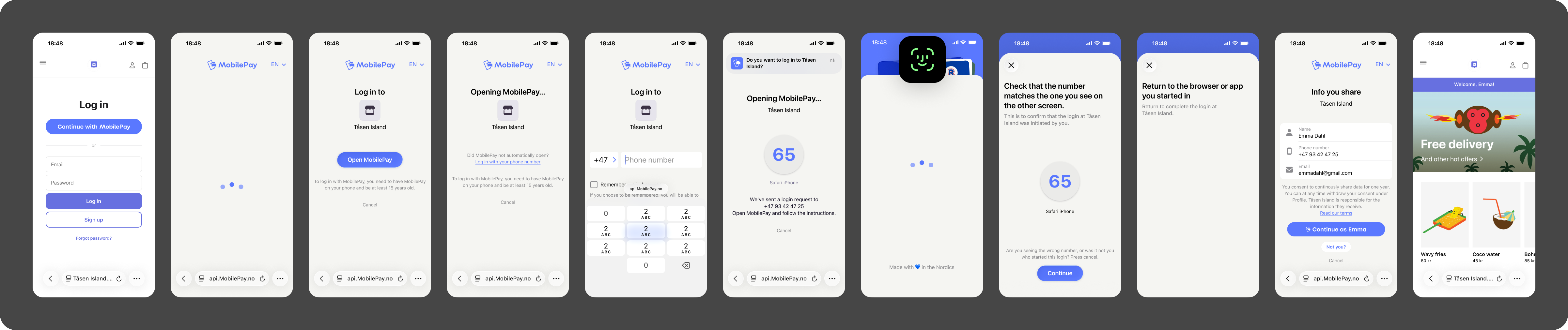
First-time login flow
1. User selects to log in using Vipps MobilePay
The user selects the button to log in with Vipps MobilePay on the merchant's website or app. The merchant initiates a login request through the authorization endpoint.
If needed, for example if the user is becoming a member of a customer club, the merchant requests access to specific profile information using scopes, as described in Userinfo.
A screen is presented informing the user to open their Vipps or MobilePay app.
2. User switches to the Vipps or MobilePay app
On a mobile device, the browser automatically triggers a deeplink to open the Vipps or MobilePay app. The user switches to the app to authenticate and complete the login process.
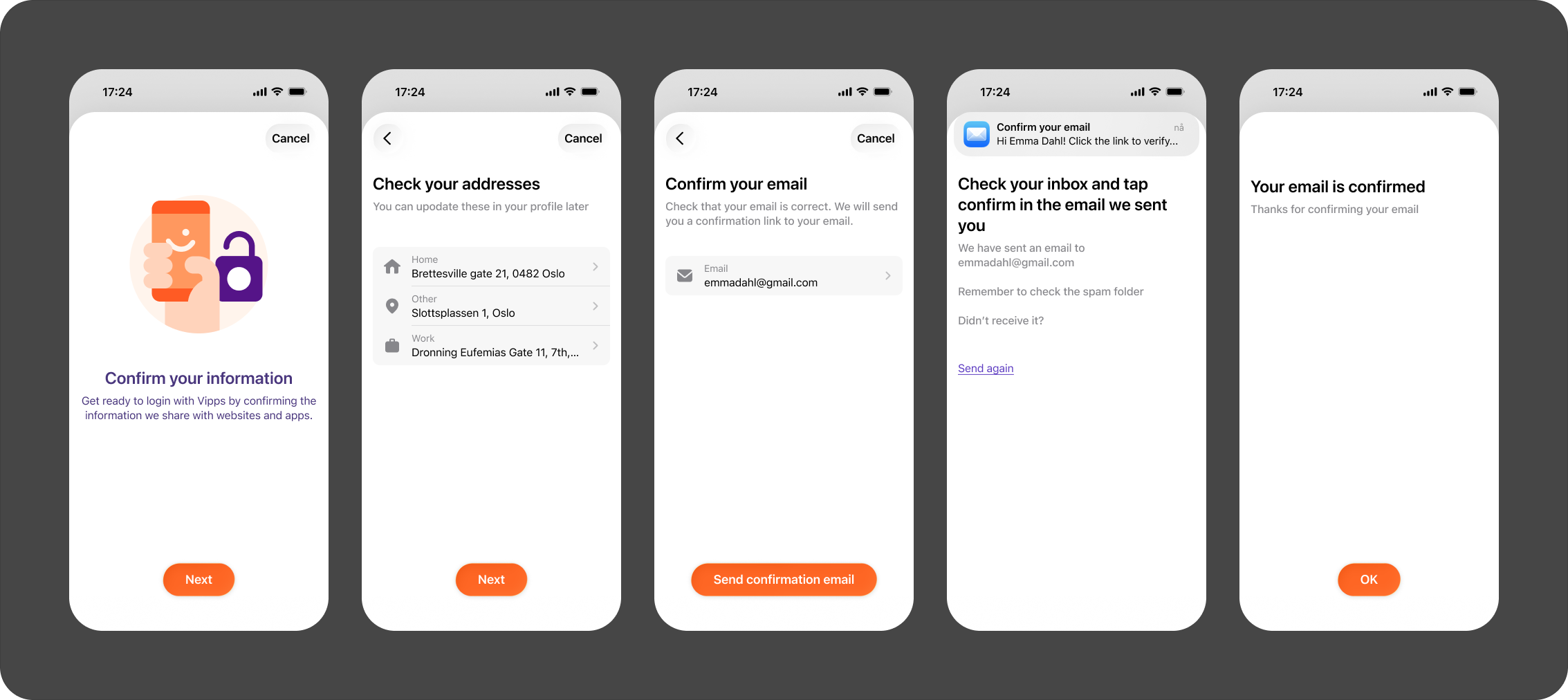
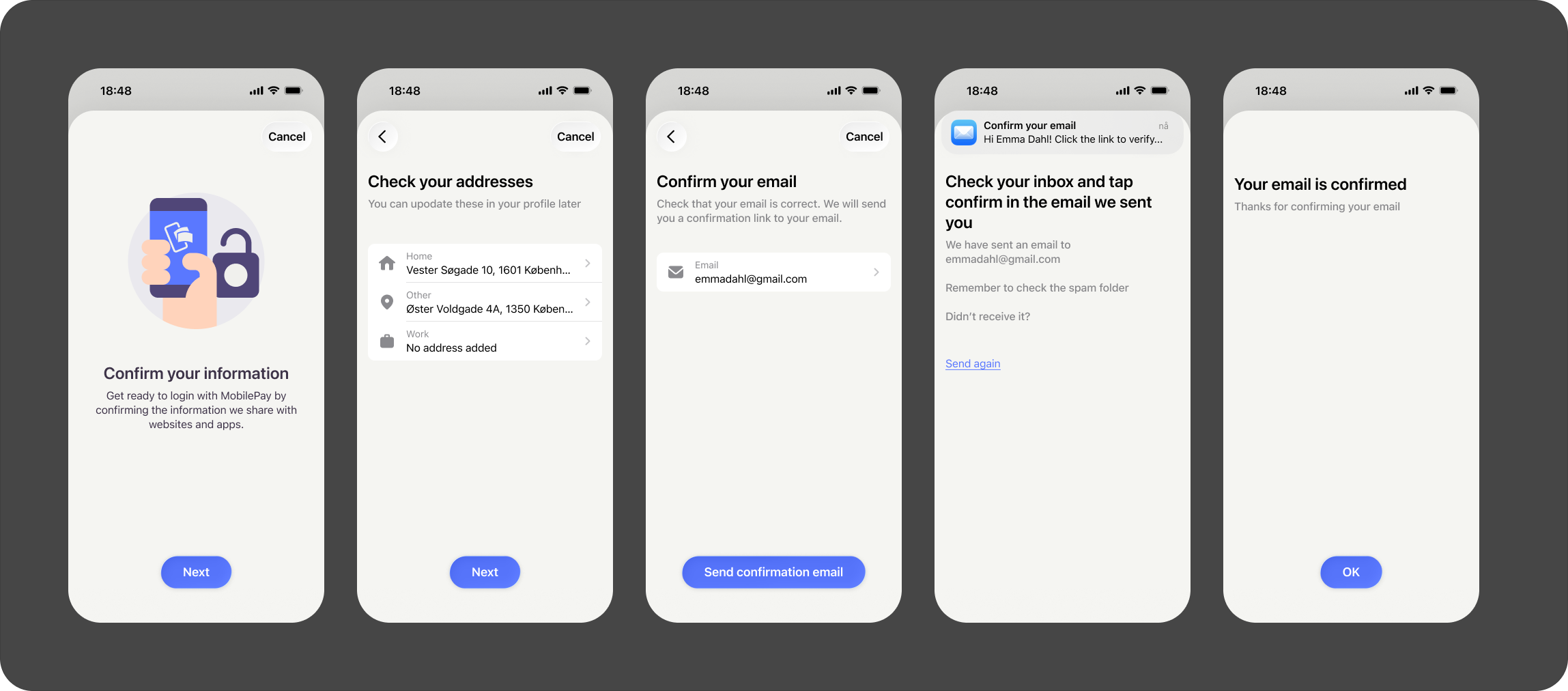
3. User verifies email address (if required)
If the merchant has requested the user's email address and the user is using Vipps MobilePay Login for the first time (or has changed their email address), they will be asked to verify their email address in the app. This verification only needs to be completed once. If the merchant hasn't requested the email scope, this step is skipped.
4. User confirms login
The user confirms the login in the Vipps or MobilePay app.
They can choose to be remembered in the browser for a quicker login the next time. The Remember me in browser option is deselected by default. If selected, future logins from the same browser will be faster and may not require opening the app.
5. User gives consent to share information
If the merchant has requested profile information (such as name, email, phone number, or address), the user is asked to consent to sharing this information with the merchant.
The user must either accept or decline the full set of requested information—they cannot select individual items.
One-time consent: The user only needs to give consent once per merchant sales unit (identified by the Merchant Serial Number). After this initial consent, it applies across all login scenarios for that sales unit. If the user has previously consented to share information with the merchant's sales unit, this step is automatically skipped.
6. Marketing consents (optional)
The merchant may choose to collect additional marketing consents from the user using Custom Flow or legacy Marketing Consents.
If configured, the user will be asked to give consents according to the merchant's specifications. This step is most suitable for registration flows, such as joining a customer club or loyalty program.
Merchants can customize the consent collection experience through the business portal. For details, see Collecting consents.
7. User is logged in
The user is now logged in on the merchant's page or app.
The merchant may provide the user with the opportunity to edit or add additional information that is not present in their Vipps or MobilePay profile, such as preferences or additional contact details.
Alternative login flows
After the first login, users may encounter simplified flows depending on their previous choices and preferences.
Returning user with browser memory
If the user chose to be remembered in their browser during a previous login, the authentication process is streamlined. The browser automatically recognizes the user, eliminating the need to enter their phone number again. The user still switches to the Vipps or MobilePay app to confirm their identity, but the overall process is faster.
- Vipps
- MobilePay
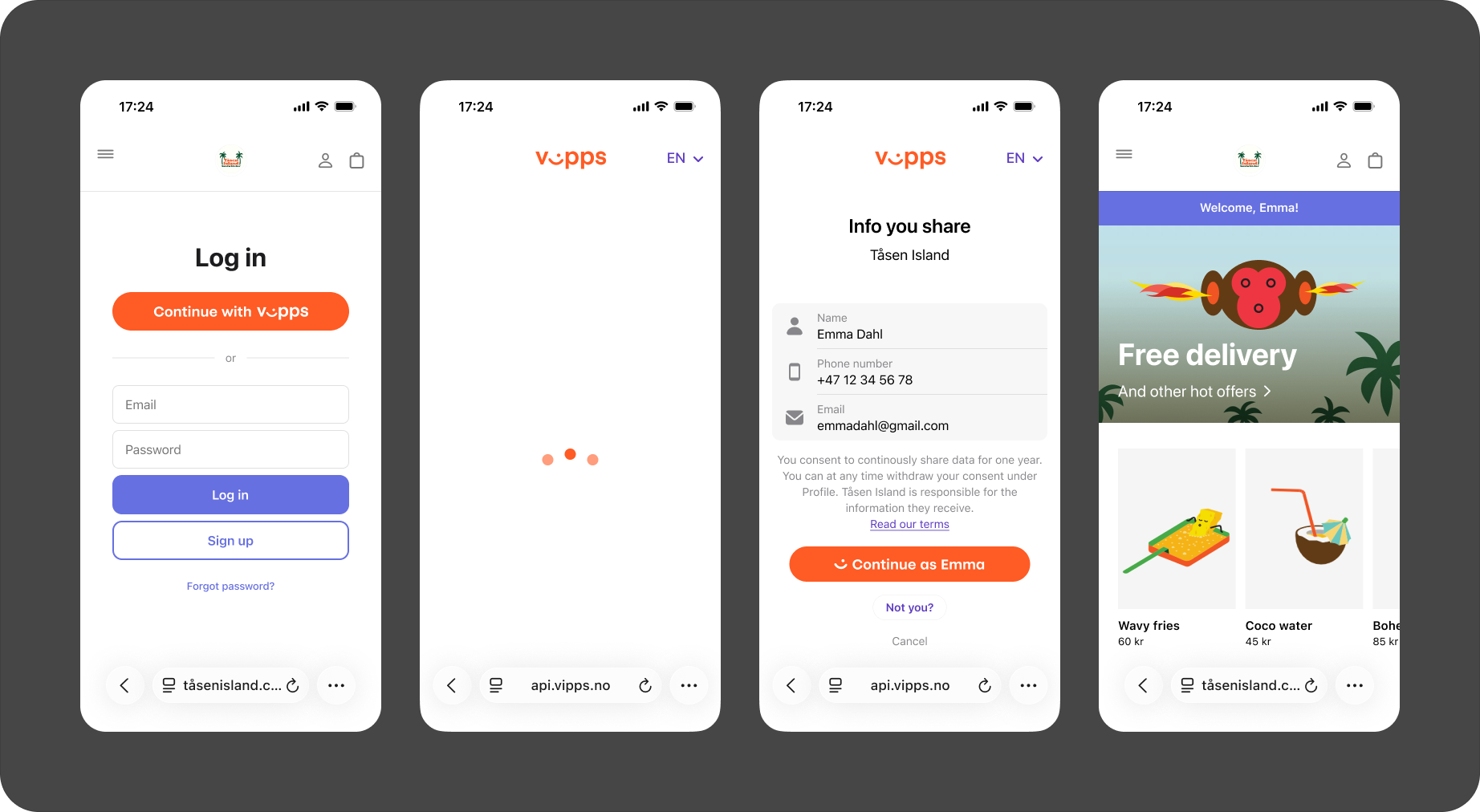
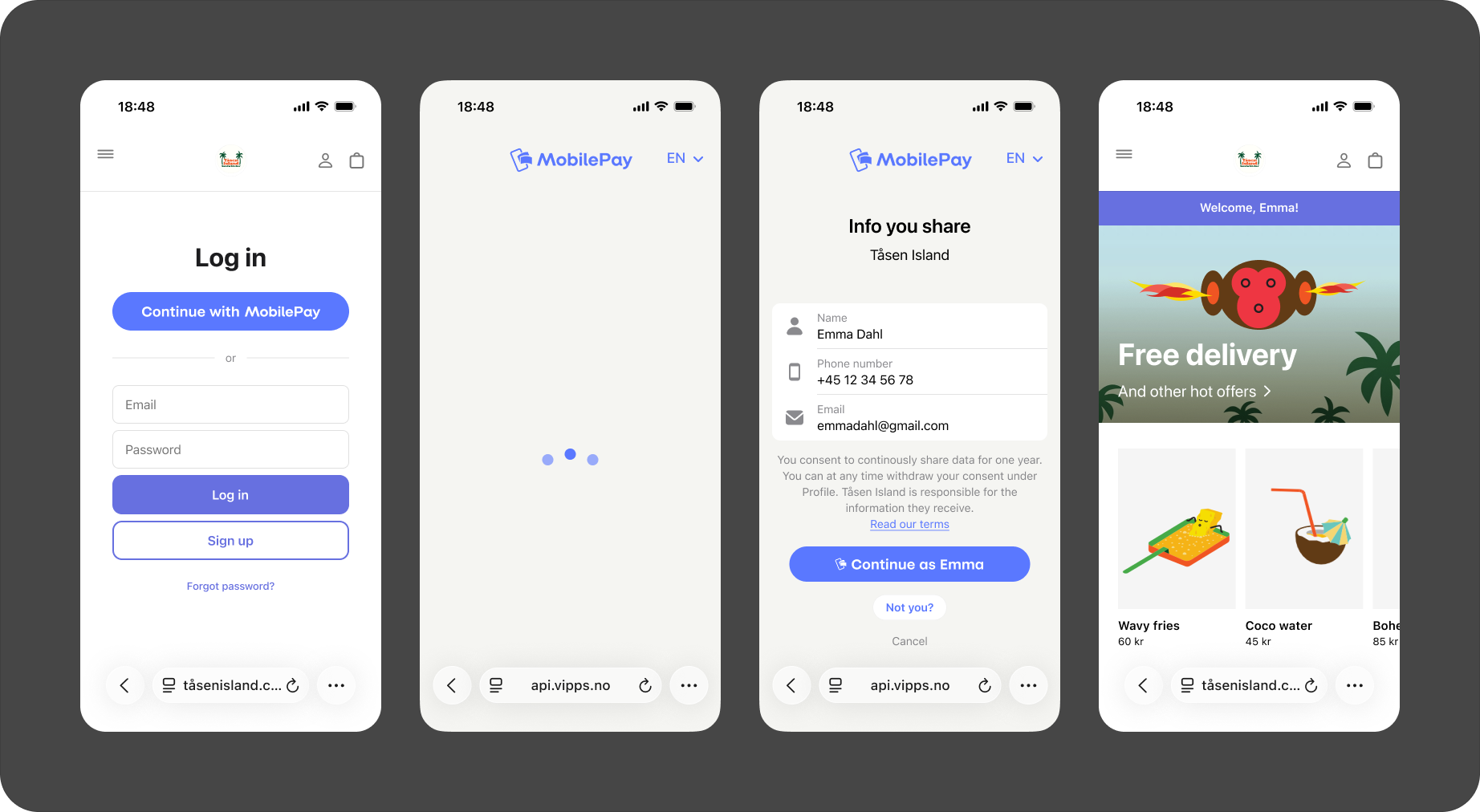
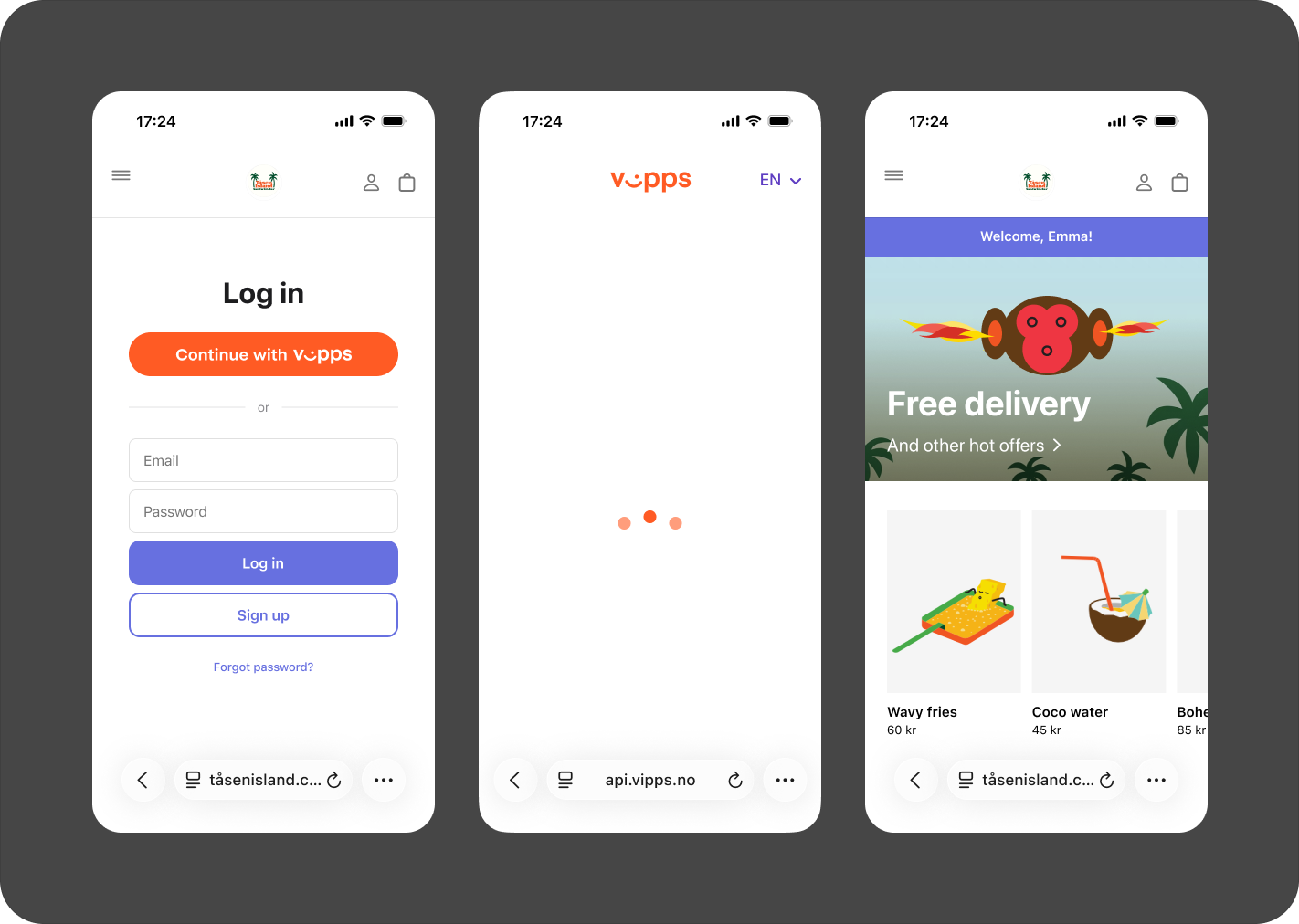
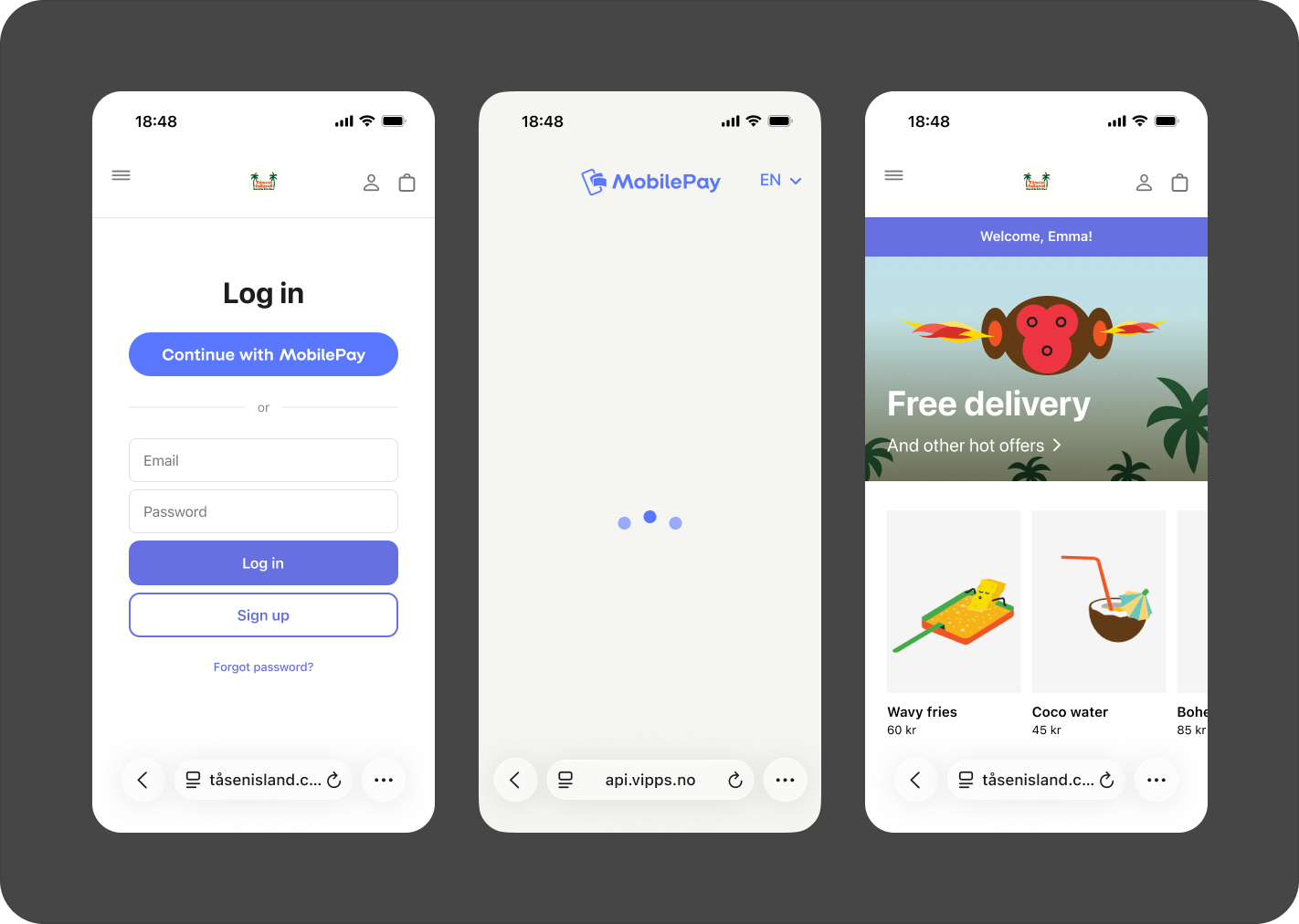
Instant login for returning users
When the user is remembered in the browser and has already given consent to share their information with the merchant, the login becomes nearly instant. The user simply confirms in the app, and they're immediately logged in—no need to re-enter information or provide consent again.
- Vipps
- MobilePay
Fallback: Manual phone number entry
In some cases, the automatic app-switch may not work (for example, if the user has an older device or browser that doesn't support deeplinks). In these situations, the user can manually enter their phone number on the landing page to initiate the login, similar to the desktop flow.
- Vipps
- MobilePay
Email verification
If the merchant has requested the user's email address using the email scope, the user must verify their email address in the app when:
- They use Vipps MobilePay Login for the first time
- They change their email address
When email verification is required, the verification screen appears at the beginning of the login flow in the Vipps or MobilePay app:
- Vipps
- MobilePay
See also
For technical implementation details, see: