Core concepts
Install AI tools
Give your assistant up-to-date guidance for our APIs, with our plugin or without it.
The plugin is still under development. See the AI tools page for details.
- Claude Code
- Cursor
- Codex
- Without installing
Run both commands, in order.
claude plugin marketplace add vippsas/agent-toolkit
claude plugin install vipps-developer@agent-toolkit
Open Settings, then Plugins.
Add vippsas/agent-toolkit as a plugin marketplace, then install the "vipps-developer" plugin.
For the app, add the marketplace "vippsas/agent-toolkit" and then install "vipps-developer". For the CLI, run the following commands.
codex plugin marketplace add vippsas/agent-toolkit
codex plugin add vipps-developer@agent-toolkit
Paste this into any assistant.
Read https://github.com/vippsas/agent-toolkit/blob/main/plugins/vipps-developer/README.md for Vipps MobilePay integration guidance.
For troubleshooting, see the full instructions.
This page gives you an overview of how payments work with Vipps MobilePay and guides you through each step of the general payment flow. Whether you're creating, capturing, cancelling, or refunding a payment, you'll find what you need right here. You'll also find links to important guidelines, error handling, and related topics to help you get up and running smoothly.
Brand requirements
Following the terms and conditions for Vipps MobilePay Business Solutions:
- Make Vipps MobilePay just as visible and easy to access as other payment methods, including digital wallets and payment apps.
- Make Vipps MobilePay directly accessible, with no secondary menus or extra steps.
- Show Vipps MobilePay at the same level as comparable payment methods.
- Avoid consistently giving Vipps MobilePay a lower priority in the display or checkout flow.
- Present Vipps MobilePay in a way that keeps checkout fair, easy to understand and quick to use.
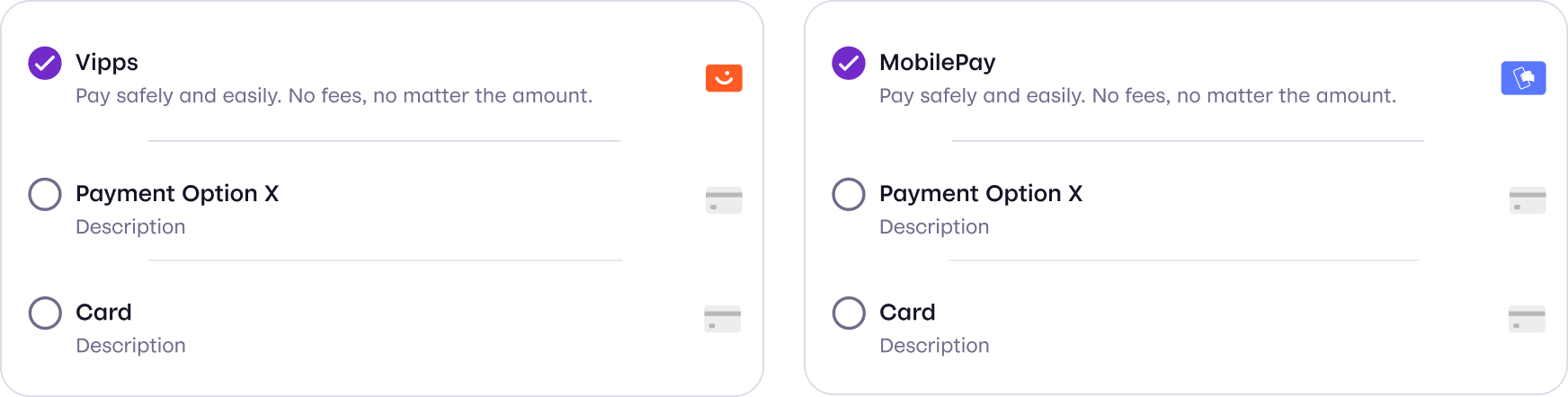
Use only the approved Vipps MobilePay buttons. The Widget SDK is the recommended tool for starting the payment, because it shows the approved button and takes the customer to the payment for you: the app on a phone or tablet, or a dialog on a computer. It also keeps the button up to date when the brand changes.
Authorization
All ePayment API requests require an access token. Obtain one from the
Access Token API using
POST:/accesstoken/get:
curl -X POST 'https://apitest.vipps.no/accesstoken/get' \
-H "Content-Type: application/json" \
-H 'client_id: YOUR-CLIENT-ID' \
-H 'client_secret: YOUR-CLIENT-SECRET' \
-H 'Ocp-Apim-Subscription-Key: YOUR-SUBSCRIPTION-KEY' \
-H 'Merchant-Serial-Number: YOUR-MSN' \
--data ''
In production, include all Vipps-System headers to aid debugging.
See HTTP headers for details.
Use the returned access_token value as the Bearer token in the Authorization header of every subsequent API request:
Authorization: Bearer <access_token>
Standard online payment flow
In your user interface, offer Vipps and/or MobilePay as a payment option.
When the user selects their preferred method, send the payment request to us.
We'll then prompt the user in their Vipps or MobilePay app to complete the payment.
See Online for the steps, a request example, and the sequence diagram. The other payment flows change how the customer starts or approves the payment.
In a physical store, you need to get the customer's phone number before creating the payment request. See recommended flows for several illustrated examples.
Payment states
A payment is acted on in two phases, divided by authorization. Up to that point the payment can still go either way: the user can approve or cancel it, the session can expire, or the merchant can terminate it through the API. Once the payment is authorized, the amount is reserved and the merchant can capture, refund, or cancel it.
A typical payment status follows these steps:
Payment lifecycle: A payment begins at Create. When the user confirms, it moves to Reserve. From Reserve, the merchant can capture the payment (moving to Capture) or cancel it (moving to Cancel). From Capture, the merchant can refund (moving to Refund). Refund and Cancel are terminal states. A payment can also move directly from Create to Cancel if the user cancels or a timeout occurs.
A payment moves through several states. It changes state when the user or the merchant acts on it.
Reaching authorization
Payment states: a payment starts as CREATED when the merchant creates the request through the API. From CREATED it moves to one of four end states: AUTHORIZED if the user approves the payment, ABORTED if the user stops it by tapping Cancel or similar, EXPIRED if the payment session expires, or TERMINATED if the merchant stops it through the API. All four are final states, and even if the merchant captures, refunds, or cancels after authorization, the state remains AUTHORIZED.
Even if the merchant (partially) captures, (partially) refunds, or cancels the payment, the state will remain AUTHORIZED.
See State reference for what each state means, and Payment modifications for what the merchant can do after authorization.
The payment operations are described in more detail on the following pages:
Payment modifications
The following modification actions can be made to AUTHORIZED payments:
| State | Description |
|---|---|
| Capture | The merchant captured part or all of an authorized payment. |
| Refund | The merchant refunded part or all of an authorized payment. |
| Cancel | The merchant has cancelled the uncaptured amount of an authorized payment. |
Capturing is time-limited. The reserved amount must be captured within the market-specific capture attempt deadlines. Refunding is also time-limited, as described in General info: Refund payment.
Only an authorized payment has a reserved amount to work with. What the merchant can do with it depends on how much has already been captured.
Modification actions after authorization
The payment state stays AUTHORIZED throughout: none of these actions change it.
Cancel is only possible while an uncaptured amount remains, so a fully captured payment cannot be cancelled.
Modification actions after authorization, organized by how much of the reserved amount has been captured. With nothing captured yet, the merchant can capture part of the amount, capture all of it, or cancel to release the reservation. After a partial capture, the merchant can capture the rest, cancel the remaining uncaptured amount, or refund the part already captured. After a full capture, only a refund is possible, because no uncaptured amount is left to cancel. None of these actions change the payment state, which stays AUTHORIZED.
To get all the details about the payment, including the captured and refunded amounts:
Use
GET:/epayment/v1/payments/{reference},
which will give you the aggregate.
You can see the history of the payment events with the Get payment event log endpoint.
To track status in real time, use both Webhooks and polling Get payment details, according to the polling guidelines.
State reference
Here is a description of each state:
| State | Description | Example |
|---|---|---|
CREATED | The payment has been initiated. The user has not yet acted upon the payment. | The user has received a push message, but not yet opened it. Or: The user has been sent to the landing page, but has not done anything in the app. |
AUTHORIZED | The user has accepted the payment in the app. This is a final state. | The payment has been reserved, (partially) captured, or (partially) refunded. A payment that has been captured (either fully or with one or more partial captures), or that has been refunded, will have one or more events, but the state would be AUTHORIZED. |
ABORTED | The payment has been actively stopped by the user. The user has aborted the payment before authorization. This is a final state. | The user cancelled instead of accepting the payment. |
EXPIRED | The payment has expired. The user did not act on the payment within the payment expiration time. This is a final state. | The user received a push message, but did nothing before the payment request timed out. By default, a user has a total of 10 minutes to accept a payment. |
TERMINATED | The merchant has cancelled the payment before authorization. The merchant has terminated the payment via the cancel endpoint. This is a final state. | The merchant was not able to provide the product or service, and has cancelled the payment. |
| Other states | A payment will not change state after becoming AUTHORIZED. This is because a payment can be partially captured, and also partially refunded. It is therefore not practical to have states like "captured" or "refunded", since it is not possible to give all the information with just the state. | A payment can be partially captured, partially refunded, or cancelled, but it will not change the state. |
Tracking the status
Track status with both Webhooks and polling, according to our polling guidelines.
Get the payment details with:
Learn about ePayment webhooks.
Understanding pspReference
The pspReference is a unique identifier defined by Vipps MobilePay. It can represent either a payment or an event, and every payment operation (e.g., capture, refund, or cancel) will have its own unique pspReference.
- Each event will have its own
pspReference, serving as its unique identifier.
When you request Get a payment's event log,
the response will include an array of events, all with their respective pspReference.
For example:
{
        ...
        "pspReference": "c70deb91-7684-451c-bac0-e433d66a6be5",
        "name": "CREATED",
        ...
    },
    {
        ...
        "pspReference": "10000568172",
        "name": "AUTHORIZED",
        ...
    },
    {
        ...
        "pspReference": "2267200447",
        "name": "CAPTURED",
        ...
    },
    {
        ...
        "pspReference": "2268200548",
        "name": "REFUNDED",
        ...
    }
You'll see that the pspReference is different for each entry.
The API requests (Get payment details, Cancel, Capture, Refund) return a pspReference in the response; this will match the CREATED event.
So, this does not match the event log or the webhook.
The webhooks always use the pspReference for the event. It aligns with the payment event log.
Error handling
For handling errors from the API, check out:
Payment guidelines
You should capture as soon as is legally possible after a payment is reserved, because some banks will release the funds after some days, making it difficult to capture later. If it's not captured within the capture attempt deadlines, it will be automatically cancelled.
However, be aware that it isn't legal to capture before the product or service is provided to the customer, as per the capture regulations.
If you do not plan to capture the entire amount, please make sure to cancel the remainder as soon as possible. Cancelling the remaining reservations will benefit the consumer, freeing up the amount for other purposes.
If you need to communicate some change to the payment after it has been reserved, you will need to send a new API request (e.g., cancel part of the amount).
The Electric vehicle charging flow shows an example of partially capturing the payment and then cancelling the remainder.
Related pages
See the many examples of online and in-store flows: