How eCom works online
Install AI tools
Give your assistant up-to-date guidance for our APIs, with our plugin or without it.
The plugin is still under development. See the AI tools page for details.
- Claude Code
- Cursor
- Codex
- Without installing
Run both commands, in order.
claude plugin marketplace add vippsas/agent-toolkit
claude plugin install vipps-developer@agent-toolkit
Open Settings, then Plugins.
Add vippsas/agent-toolkit as a plugin marketplace, then install the "vipps-developer" plugin.
For the app, add the marketplace "vippsas/agent-toolkit" and then install "vipps-developer". For the CLI, run the following commands.
codex plugin marketplace add vippsas/agent-toolkit
codex plugin add vipps-developer@agent-toolkit
Paste this into any assistant.
Read https://github.com/vippsas/agent-toolkit/blob/main/plugins/vipps-developer/README.md for Vipps MobilePay integration guidance.
For troubleshooting, see the full instructions.
💡 All new integrations: Use the ePayment API.
📚 Existing eCom API users: See the eCom to ePayment migration guide for step-by-step migration instructions.
This is how payment with the eCom API works.
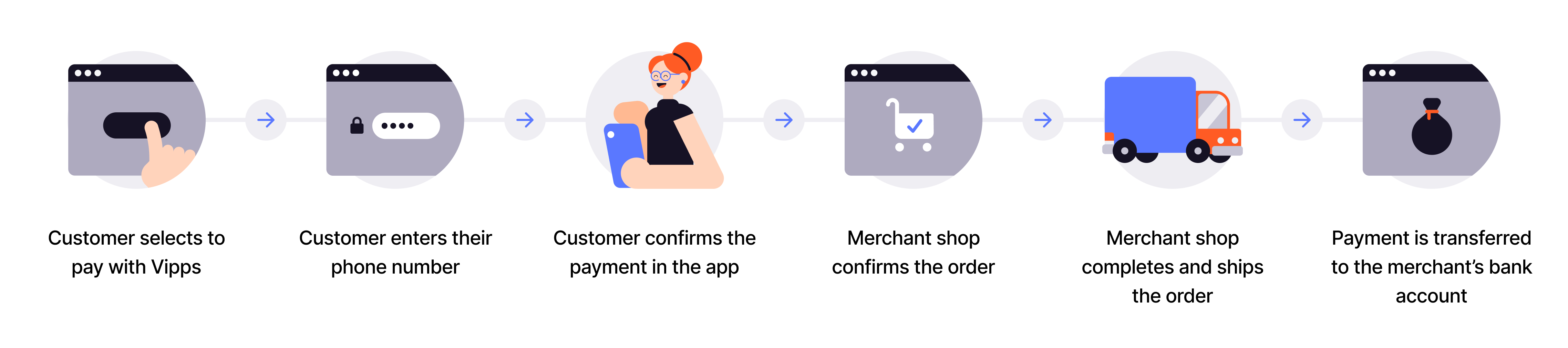
Flow diagram: 6-step Vipps online payment process. (1) Customer selects to pay with Vipps. (2) Customer enters their phone number. (3) Customer confirms the payment in the app. (4) Merchant shop confirms the order. (5) Merchant shop completes and ships the order. (6) Payment is transferred to the merchant's bank account.
1. Pay with Vipps
The user chooses Pay with Vipps, either in the checkout, or on the product page (Express) of a merchant's website or app.
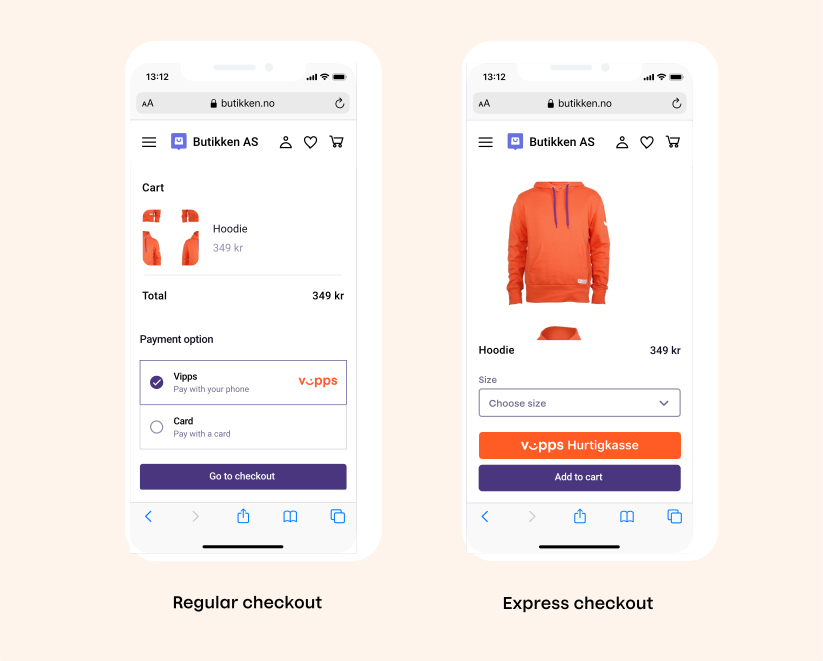
Screenshot: Online checkout page showing two payment options: a standard "Pay with Vipps" button and a "Vipps Express" button (Hurtigkasse) that allows completing the entire order within the app.
2. The landing page (If customer started on desktop)
If the payment was started on a desktop device, the user will be sent to the landing page. The user confirms their number, and is prompted to log in to Vipps.
If the payment was started from a mobile device, the app will automatically switch over to Vipps.
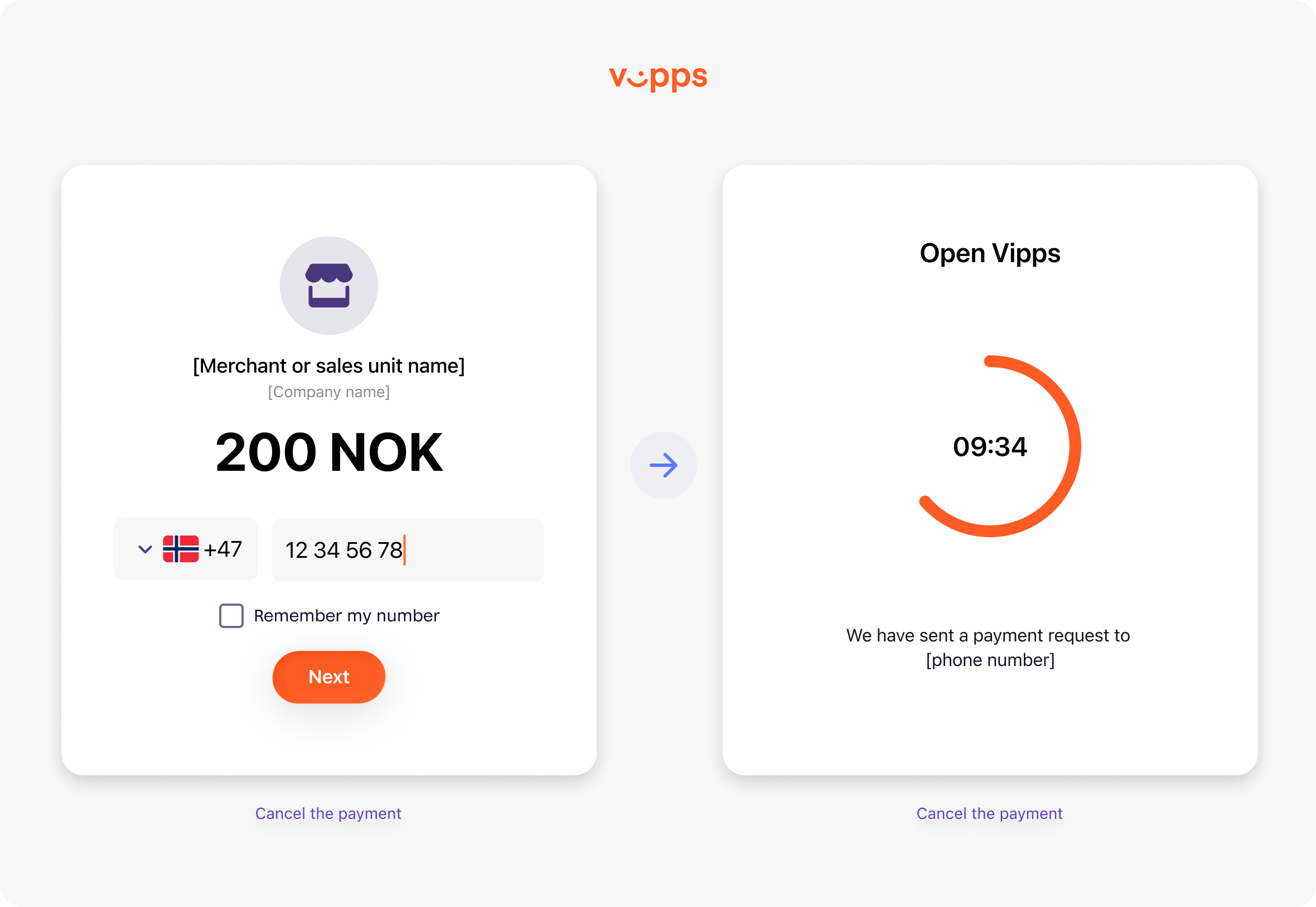
Screenshot: Vipps landing page showing two states side by side. Left: phone number entry field (Norwegian +47 prefix) and a "Remember my number" checkbox. Right: waiting screen with a countdown timer and "Open Vipps" prompt confirming the payment request was sent.
3. Confirm payment in Vipps
The user receives a push notification on their phone. They log in to Vipps and confirm the payment. The payment is reserved, and the user gets a confirmation of the successful payment.
For Express (Vipps Hurtigkasse), the user must give access and then choose a shipping method.
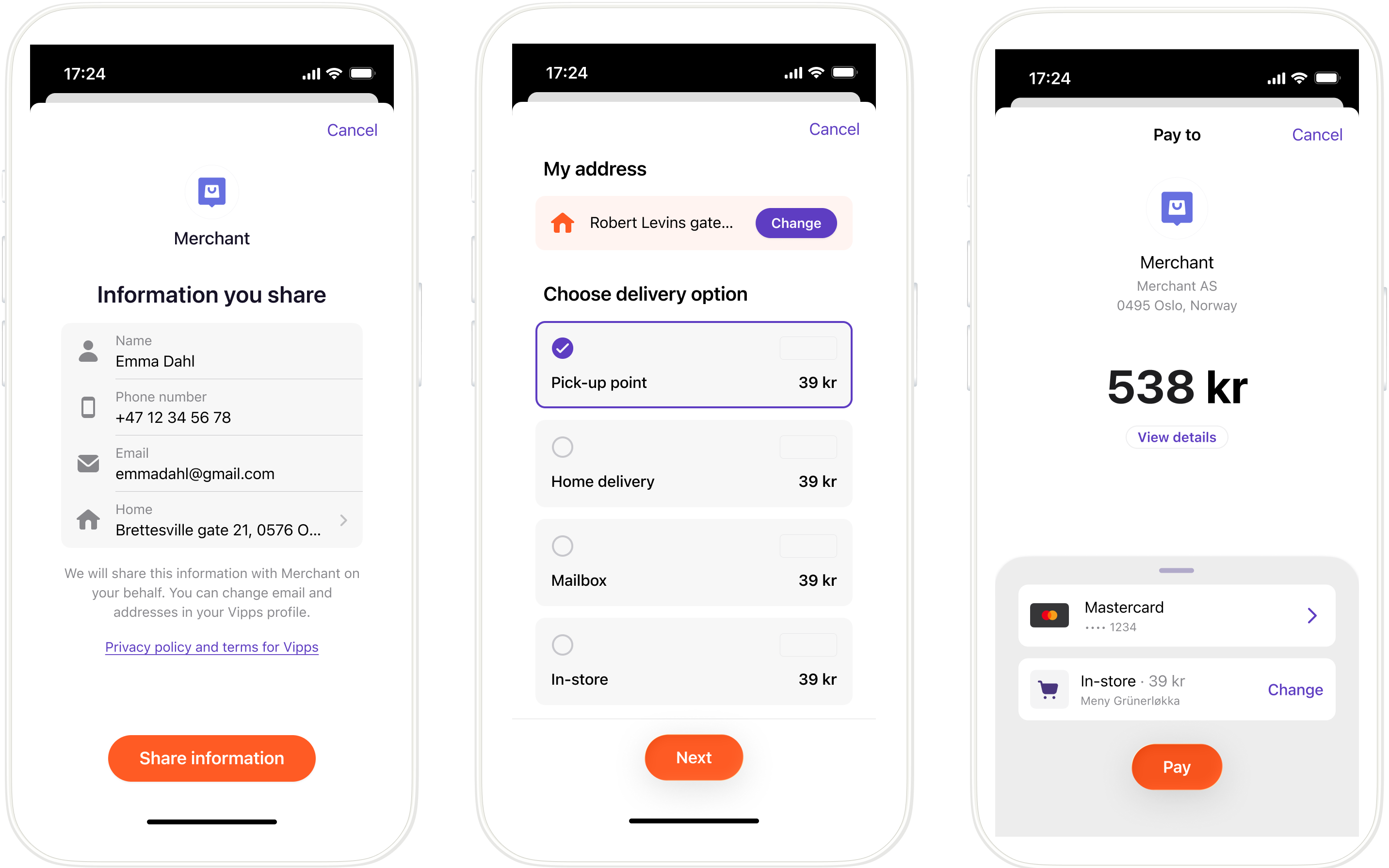
Three-screen Vipps Express flow: (1) Information sharing screen (name, phone, email, address) with "Share information" button. (2) Delivery options (pick-up point, home delivery, mailbox, in-store). (3) Payment summary with Mastercard and delivery selection.
4. Order confirmation
The user is redirected back to the merchant’s store, and the order is confirmed.
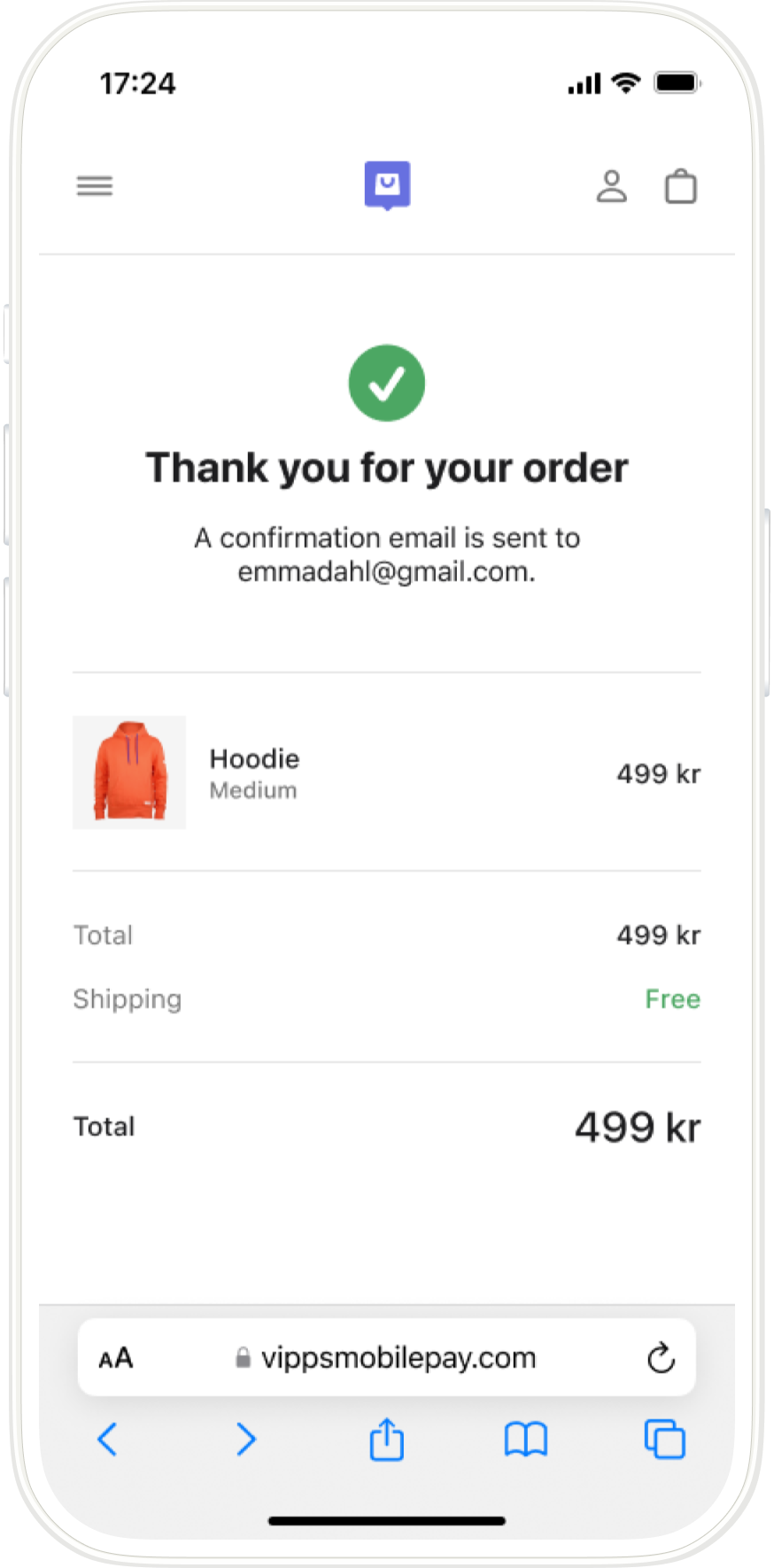
Screenshot: Merchant webshop order confirmation page showing "Thank you for your order" with a green checkmark. A confirmation email was sent to the customer. Order shows a Hoodie (Medium) with free shipping.
5. Completing the order and shipping
The merchant completes the order and ships it to the customer.
6. Money in the bank
The payment is transferred to the merchant’s account. This may take 2–3 days depending on your bank.
Great! Now you know how the payment process works.
Read all the technical details in the eCom API Guide.